
linkOverview
linkFeatures
Adds support for layouts, styles, templates and UniTheme2 theme functionality for full-fledged work in CS-Cart Multi-Vendor installations (for marketplaces).
It is not an independent addon (it requires the UniTheme2 complex to work).
linkCompatibility
| Available add-on version | CS-Cart/Multi-Vendor compatible versions |
|---|---|
v4.19.1.a |
4.19.1 |
v4.18.1.a |
4.18.1 – 4.19.1 |
v4.16.1.a |
4.16.1 – 4.18.1 |
v4.15.1.b |
4.15.1, 4.15.2 |
v4.14.3.a |
4.14.3 |
v4.14.1.a |
4.14.1 – 4.15.2 |
v4.12.2.b |
4.12.2 – 4.13.3 |
v4.12.2.a |
4.12.2 – 4.15.2 |
v4.12.1.a |
4.12.1 – 4.15.2 |
v4.11.5.a |
4.11.5 |
v4.11.4.a |
4.11.4 |
v4.11.3.a |
4.11.3 |
v4.11.2.a |
4.11.2 |
v4.11.1.a |
4.11.1 |
v4.10.4.b |
4.10.4 |
v4.10.3.b |
4.10.3 |
v4.10.2.c |
4.10.2 |
v4.10.2.a |
4.10.1, 4.10.2 |
linkSupport
General technical support conditions are available at this link (be sure to review these conditions, all solutions from the AlexBranding development team come with limited technical support).
In order to use our technical support, you need to:
- Log in with your order owner account on https://cs-cart.alexbranding.com;
- Go to the page My Account → Orders;
- Find the corresponding order with the problem add-on in the orders list and pass to its details;
- Find the “Support” link next to the corresponding add-on name (near you can find Documentation link also) and click on it;
- Fill in the data with the problem, provide access to your CS-Cart installation (path to the administration panel, admin mail, admin password + FTP access) and create a ticket (after you will create the ticket, you will receive an e-mail and a special code to track the ticket in the future);
- Wait for the specialist answer in accordance with the regulations of the technical support service and the priority of your ticket.
If you didn't receive an answer within the deadlines, according to the chosen ticket priority, send e-mail info@alexbranding.com with the ticket number, for which you did not receive an answer in time, and the team manager will solve the problem in compliance with regulations.
link Demo
You can test the addon work with admin access using our demo server Demos for CS-Cart solutions from Alexbranding by choosing it in Addons list or just follow the link.
linkRestrictions and warnings
We recommend to note general restrictions:
- All solutions from AlexBranding developers team require pre-installation of the AB: Addons Manager service addon. It is delivered free of charge and is responsible for such services: installation, upgrades, license verifications. Excluding this service addon usage is not possible;
- Addon files may have a closed (encoded) part, in which only a license check is located;
- The addon will work only on those domains, that are specified in the user's license. If you try to use the solution on CS-Cart installations, whose domains are not included in the license, the addon will be automatically turned off;
- Local installation is not possible, so that the addon works on the additional domain (subdomain), enter this domain (subdomain) in the Domain field, when ordering (or write to info@alexbranding.com) - adding technical domains for the developing or for testing is always free.
linkUsage
linkInstallation
After your order has been processed by our manager, it will be transferred to Completed state, you will receive an email to your mailbox with ordered add-ons license numbers (usually it takes from 15 minutes to 8 hours depending on the day time and week day).
Then follow the steps below, which differs depending on your version of the CS-Cart platform:
You can also install the add-on with a standard installation for CS-Cart. To do this, download the appropriate archive with an add-on version compatible with your version of the CS-Cart platform.
Go to the website cs-cart.alexbranding.com, log in under the account of the order holder and go to the page My Profile → Orders → Relevant Order, go to details and you will see a list of available archives for the ordered add-on. Download the version (archive) you need and make the installation (standard for CS-Cart installation: Add-ons → Downloaded add-ons and in the gearwheel menu select Manual installation).
Install the addon together with other addons included in the UniTheme2 MV package. The addon will automatically add layouts, styles, functional support and some templates for the full-fledged work of UniTheme2 in CS-Cart Multi-Vendor edition.
FollowUniTheme2 documentation.
linkSettings, added by add-on to UniTheme2
Add-on also adds several settings in UniTheme2 settings:
For access to the theme settings go to the page Administration panel → Add-ons → Manage add-ons and at the theme name AB: UniTheme2 (Multi-Vendor) in the gearwheel menu select section Vendor settings on product page. On the opened page select the section Block with vendor information.
_en.jpg "Theme settings - Vendor settings on product page")
linkBlock with vendor information on the Product lists page
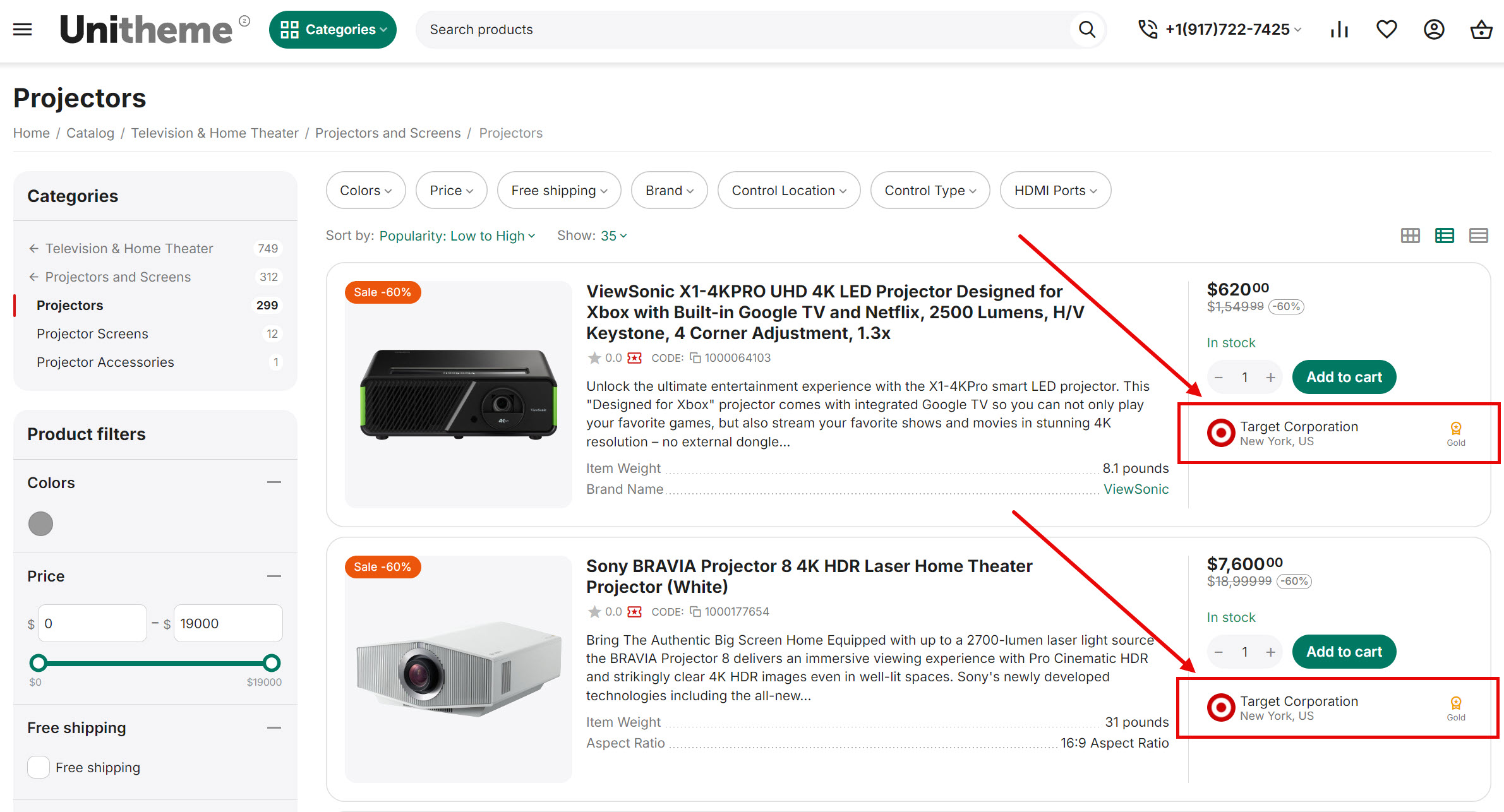
For each type of product lists there are settings, that allow to display maximum information about vendor in a short view.
linkSettings for "Grid" product list view
Settings for Grid product list view. Please note, that some settings allow you to control the output of functional elements for different devices separately.
_en.jpg "Vendor settings for \"Grid\" product list view")
- Show vendor information ‒ allows to display vendor name;
- Show vendor logo ‒ allows to display vendor logo;
- Show vendor address ‒ allows to display vendor address;
- Show vendor rating ‒ allows to display vendor rating. The setting depends on CS-Cart add-on Vendor rating and specified rating on the page Vendors → Vendors → [vendor name] → "Rating" tab.
linkSettings for "List without options" product list view
Settings for List without options product list view. Please note, that some settings allow you to control the output of functional elements for different devices separately.
_en.jpg "Vendor settings for \"List without options\" product list view")
- Show vendor information ‒ allows to display vendor name;
- Show vendor logo ‒ allows to display vendor logo;
- Show vendor address ‒ allows to display vendor address;
- Show vendor rating ‒ allows to display vendor rating. The setting depends on CS-Cart add-on Vendor rating and specified rating on the page Vendors → Vendors → [vendor name] → "Rating" tab.
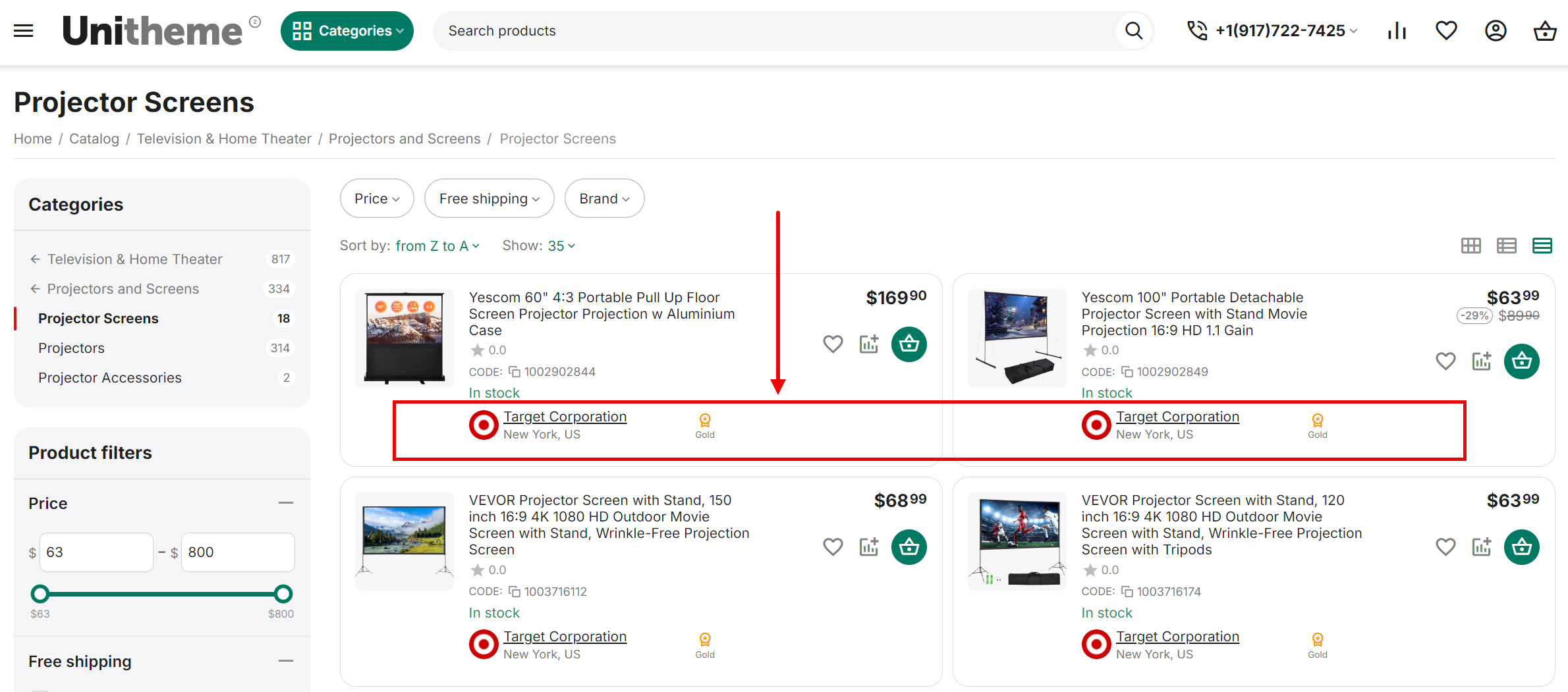
linkSettings for "Compact list" product list view
Settings for Compact list product list view. Pay attention to the presence of add-on-dependent settings. Some settings allow managing functionality elements output for different devices separately
_en.jpg "Vendor settings for \"Compact list\" product list view")
- Show vendor information ‒ allows to display vendor name;
- Show vendor logo ‒ allows to display vendor logo;
- Show vendor address ‒ allows to display vendor address;
- Show vendor rating ‒ allows to display vendor rating. The setting depends on CS-Cart add-on Vendor rating and specified rating on the page Vendors → Vendors → [vendor name] → "Rating" tab.
linkVendor page
For access to the theme settings go to the page Administration panel → Add-ons → Downloaded add-ons and at the theme name AB: UniTheme2 (Multi-Vendor) in the gearwheel menu select Vendor settings on vendor page.
_en.jpg "Theme settings - Vendor page")
In the vendor panel on the Seller info page, the add-on AB: UniTheme2 (Multi-Vendor) adds some new settings.
linkShort description of vendor
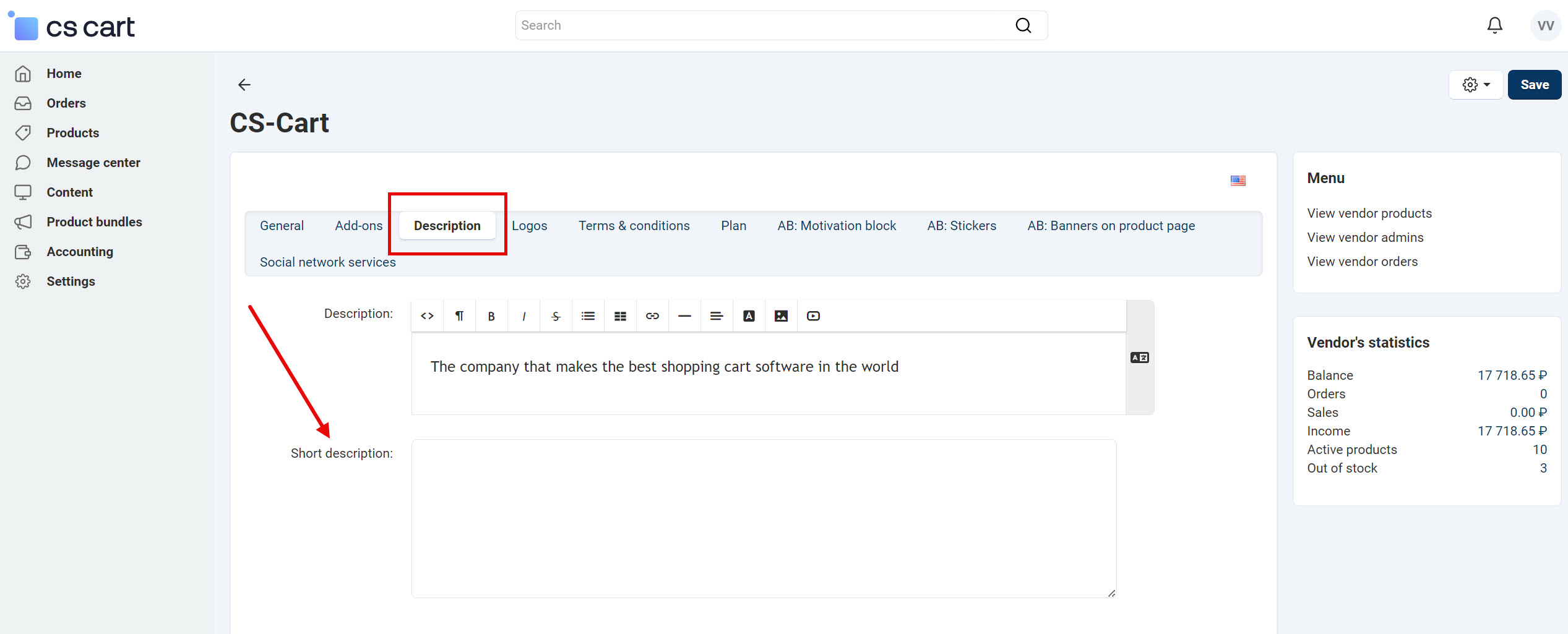
A new field Short description is added to the tab Description, that can be displayed:
- in the block with the template AB: Vendor information;
- on the page AB: Vendor micro-store;
- on the page AB: Vendor reviews.
linkCompact logo of vendor
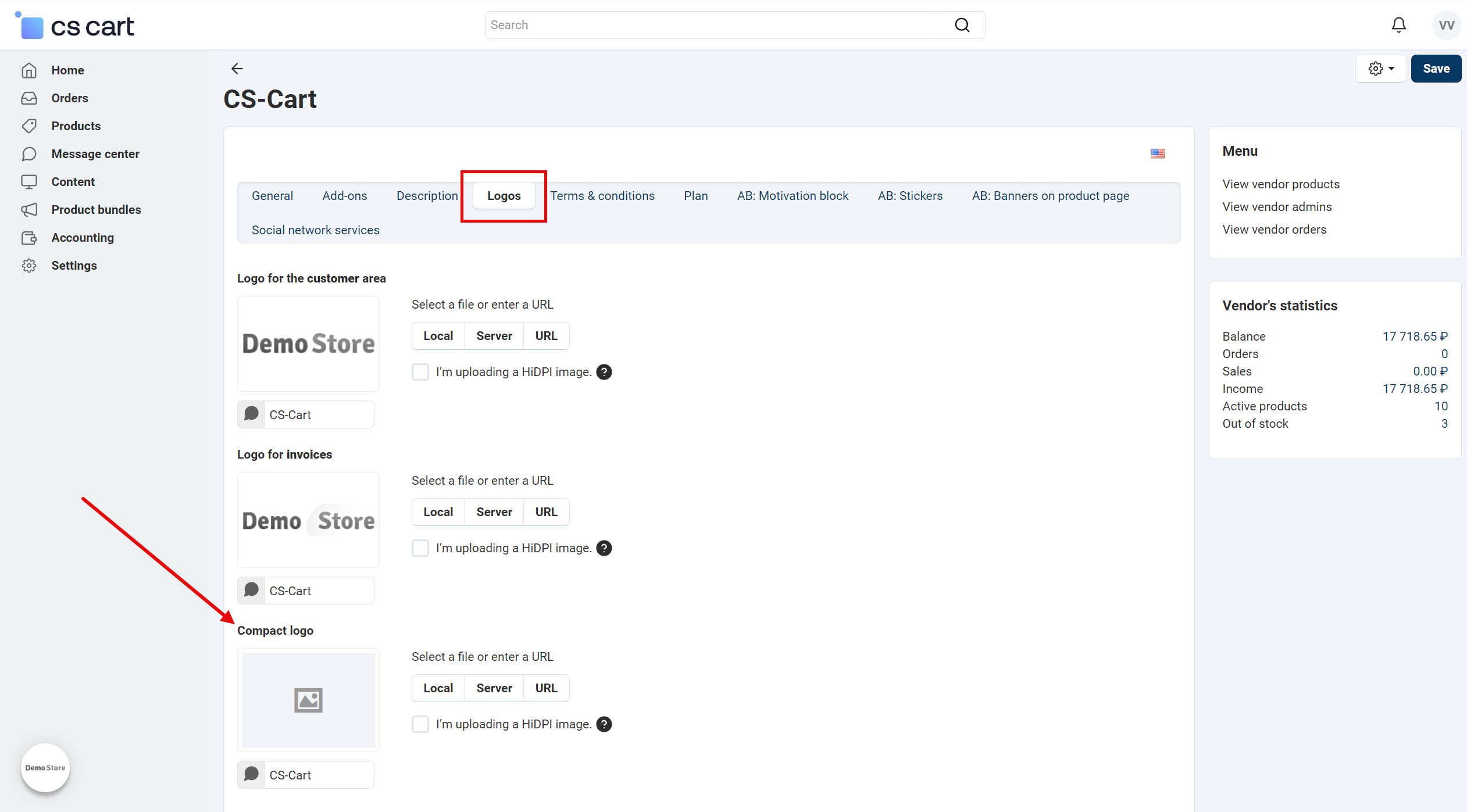
Compact logo is added to the tab Logos, that can be displayed:
- in product blocks;
- on the category page of all templates;
- on the product page.
linkAB: Banners on product page
When the setting AB: Banners on product page is enabled (located Vendors → Vendor plans → [plan name] → "Restrictions" tab) by the main administrator/ marketplace holder, the page Seller info → "AB: Banners on product page" tab will be available for vendor. In this tab the vendor can manage his banners, which will be displayed on the page of vendor's products.
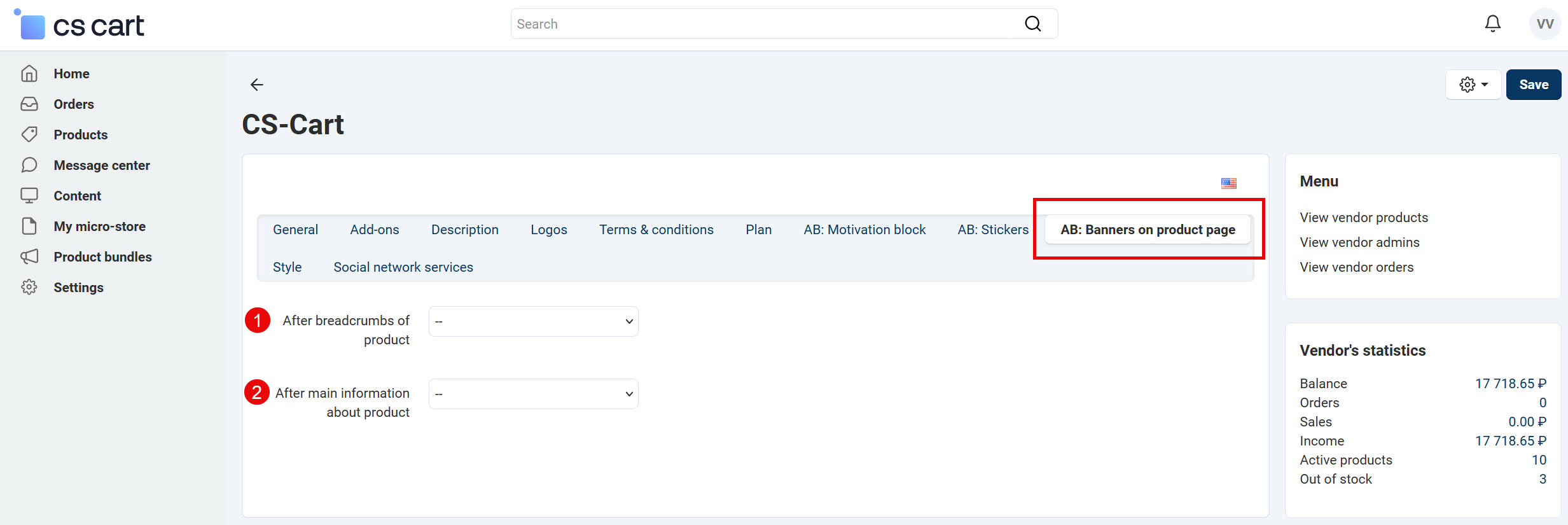
- After breadcrumbs of product ‒ display the banner after breadcrumbs of product;
- After main information about product ‒ display the banner after main information about product.
UniTheme2 MV add-on allows vendors to manage colors of menu, colors and background of block of vendor information, background of vendor page header. To do this, the main administrator/ marketplace holder should grant access to vendor on the page Vendors → Vendor plans → [plan name] → "Restrictions" tab → AB: Personal design of pages and blocks.
There are settings to manage design for pages and blocks of vendor on the page Seller info → "Style" tab.
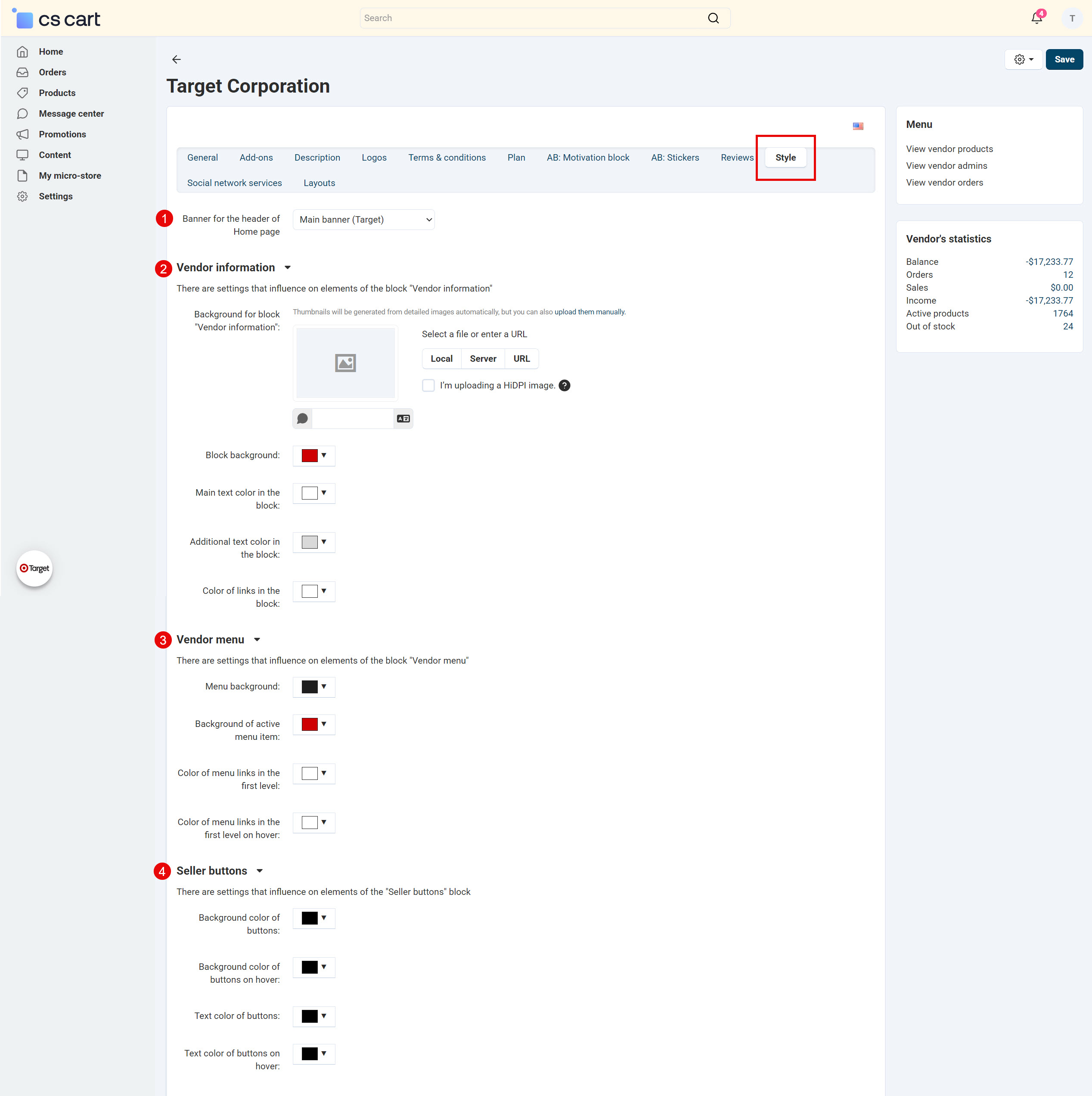
- Banner for the header of Home page ‒ allows to select a vendor banner for the header of Home page (Micro-store).
- Vendor information ‒ settings that influence on elements of the block Vendor information:
- Background for block Vendor information;
- Block background;
- Main text color in the block;
- Additional text color in the block;
- Color of links in the block.
- Vendor menu ‒ settings that influence on elements of the block Vendor menu:
- Menu background;
- Background of active menu item;
- Color of menu links in the first level;
- Color of menu links in the first level on hover.
- Vendor buttons ‒ settings that influence on elements of the Vendor buttons block:
- Background color of buttons;
- Background color of buttons on hover;
- Text color of buttons;
- Text color of buttons on hover.
The main administrator/ marketplace holder can manage design of pages and blocks of vendor on the page AB: UniTheme2 → Color scheme settings → "Vendor" tab.
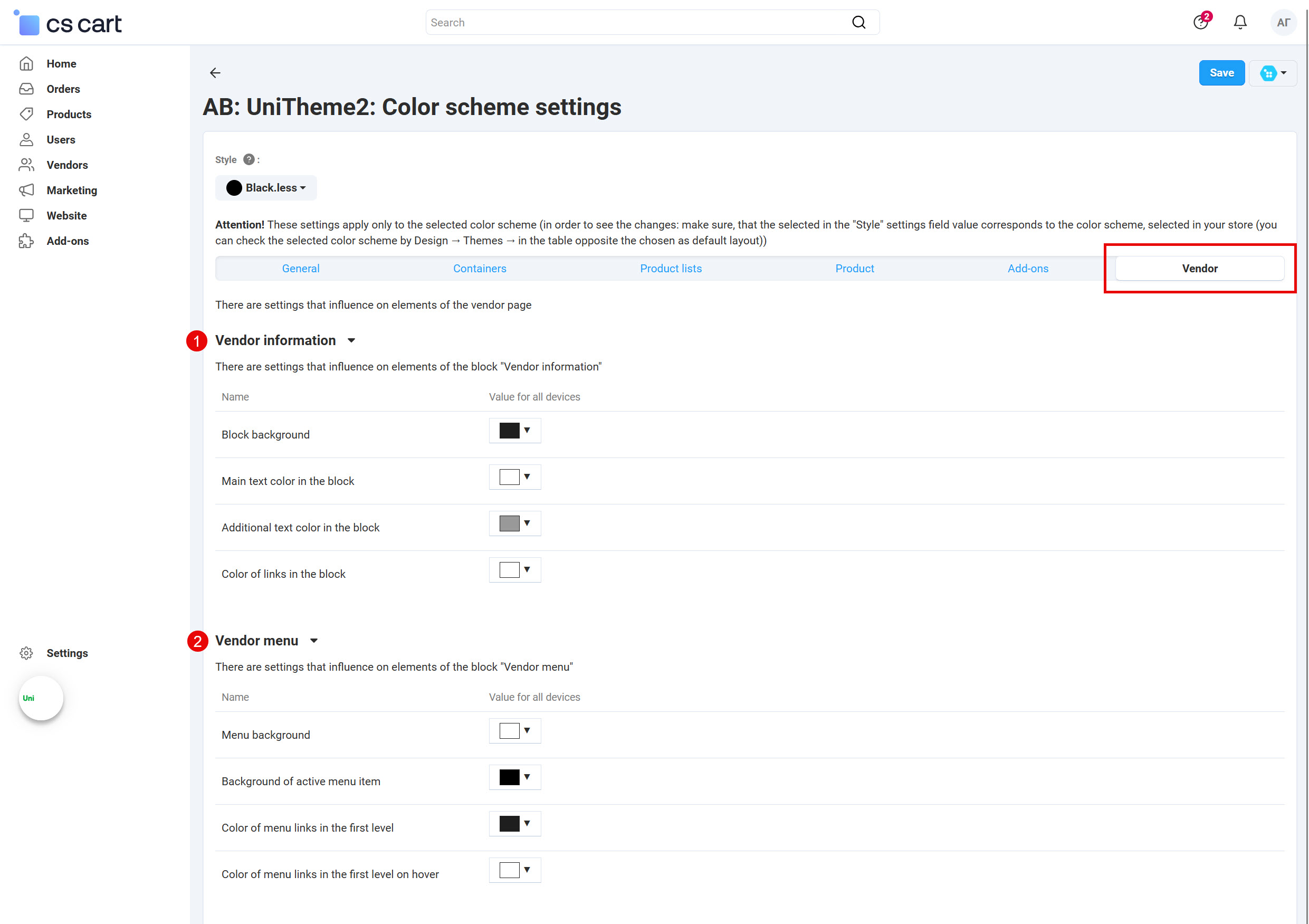
- Vendor information ‒ settings that influence on elements of the block Vendor information:
- Block background;
- Main text color in the block;
- Additional text color in the block;
- Color of links in the block.
- Vendor menu ‒ settings that influence on elements of the block Vendor menu:
- Menu background;
- Background of active menu item;
- Color of menu links in the first level;
- Color of menu links in the first level on hover.
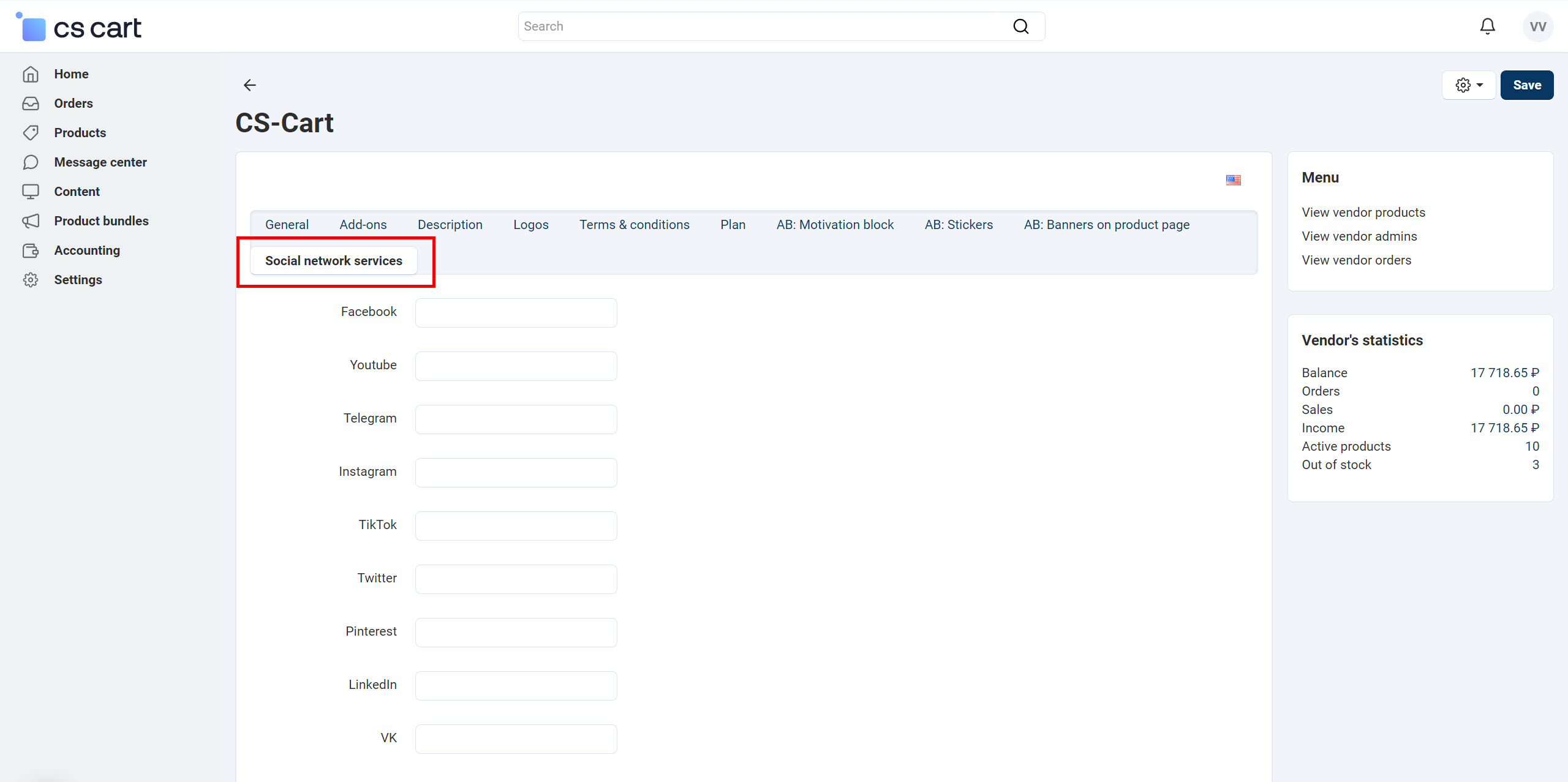
linkSocial network services of vendor
A new tab Social network services has been added to the Seller infor page, where the network information is displayed in the block with template Vendor contacts (only for "About vendor" page).
Step by step instruction to set the block:
- Go to the page Administration panel → Website → Themes → Layouts → "AB: About vendor" tab.
- Add the block template Template and select the template Vendor contacts (only for "About vendor" page).
linkLayout of the page "AB: Vendors"
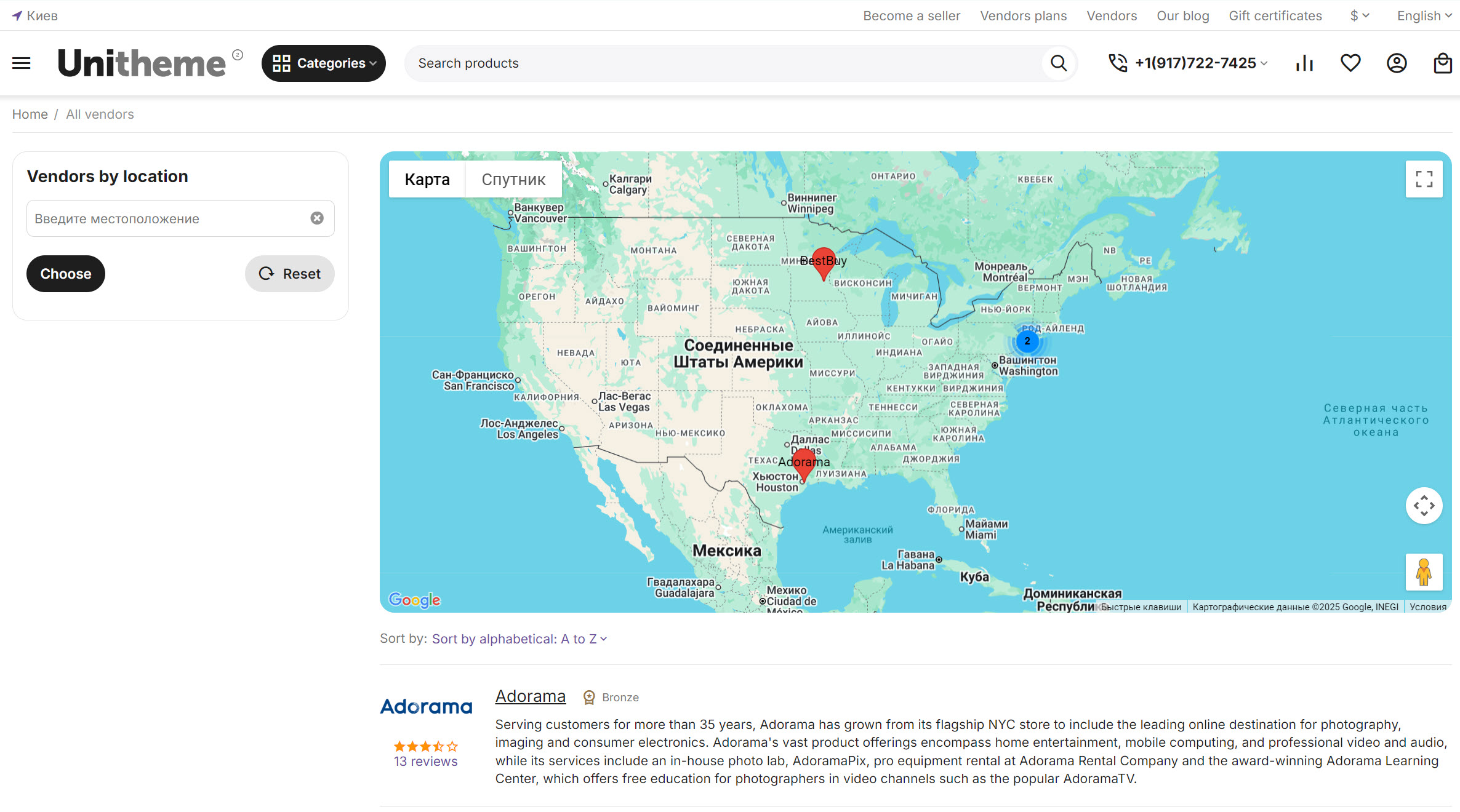
To restore the layout and get maximal correct style of the page, we recommend you to follow the steps below:
- Activate or install the Vendor locations [Beta] add-on.
- Create a new layout in the store with a set of blocks that begins from prefix Original: UniTheme2.
- Go to the page AB: Vendors and manually carry over the settings that are used in the layout (as well as customer classes in sections and blocks) to the page AB: Vendors of your layout in use.
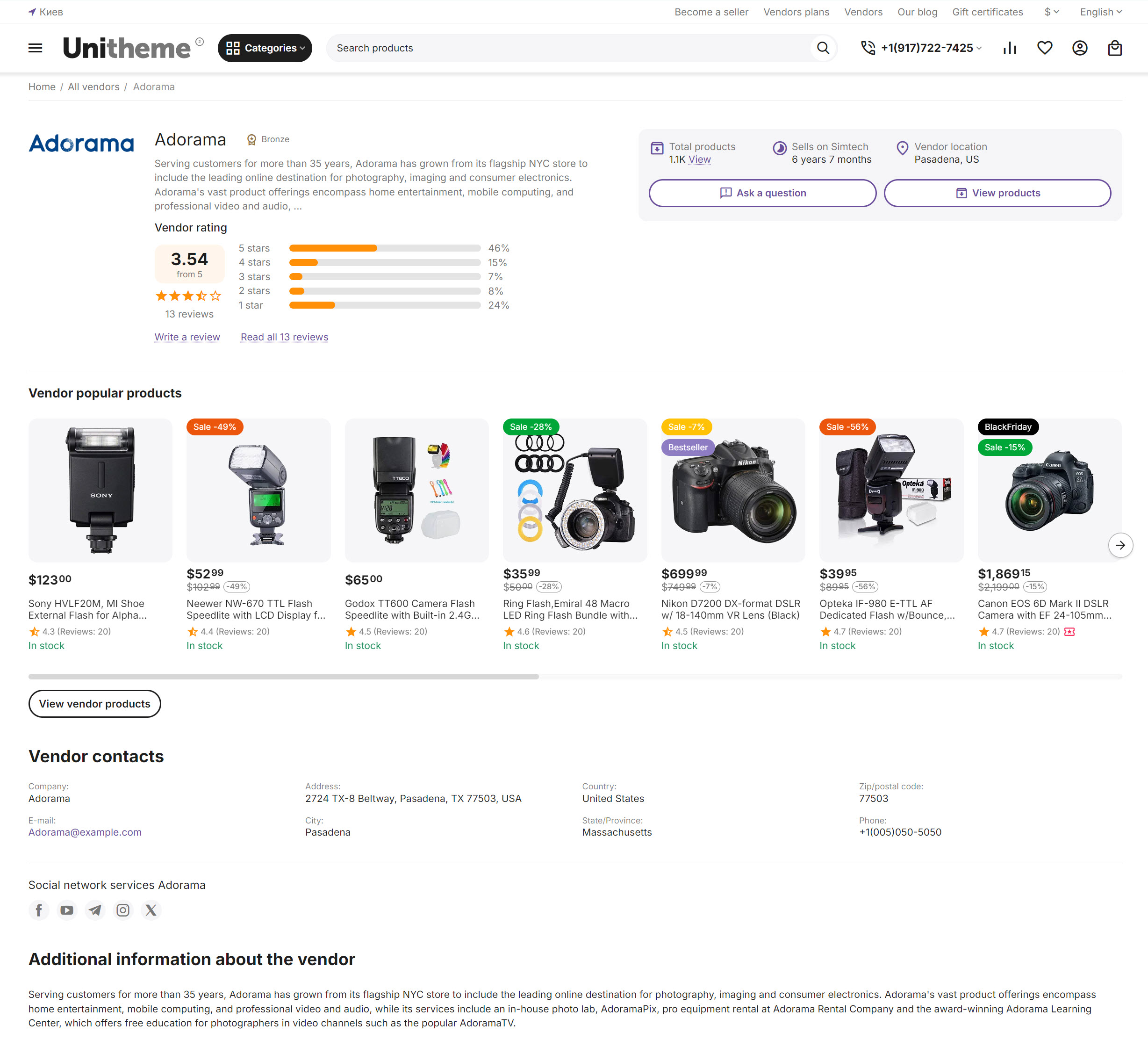
UniTheme2 для Multi-Vendor add-on allows to improve the basic page About vendor, add your own style and locate additional blocks: vendor rating with a transfer to review page about vendor, vendor contacts, vendor information (logo, vendor name, general quantity of products, activity duration on marketplace, vendor location etc.), button All vendor products to transfer to the Vendor products page.
linkBlock "Vendor information (for vendor about page)" on the page "AB: About vendor"
To create the block follow the steps below:
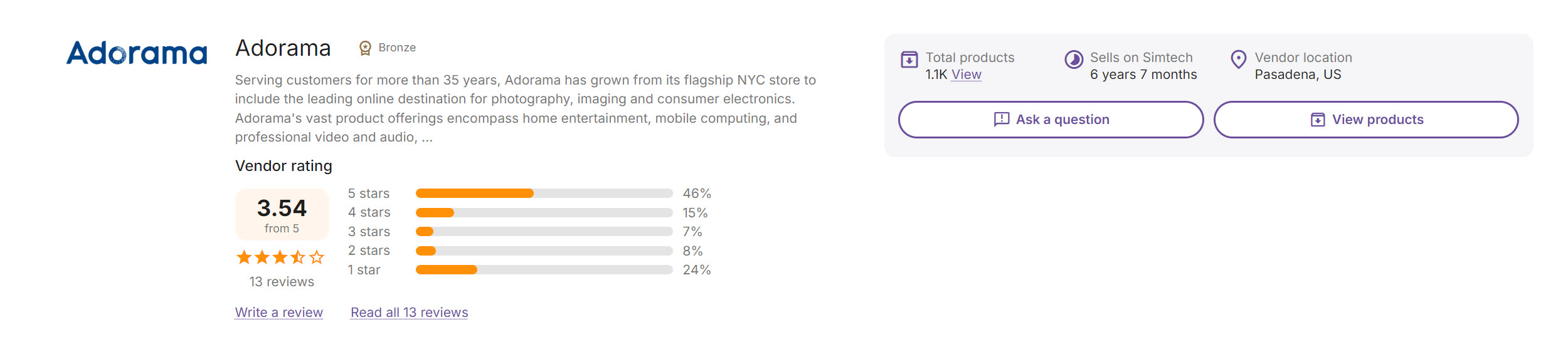
- Go to the page Website → Themes → Layouts → layout page "AB: About vendor";
- Create the block of template Vendor information;
- Select the template AB: Vendor information (Vertical);
- Click Settings at the template to check the necessary information for display on storefront.
Detail information about block settings see in the section Settings of the block "Vendor information (for vendor about page)".
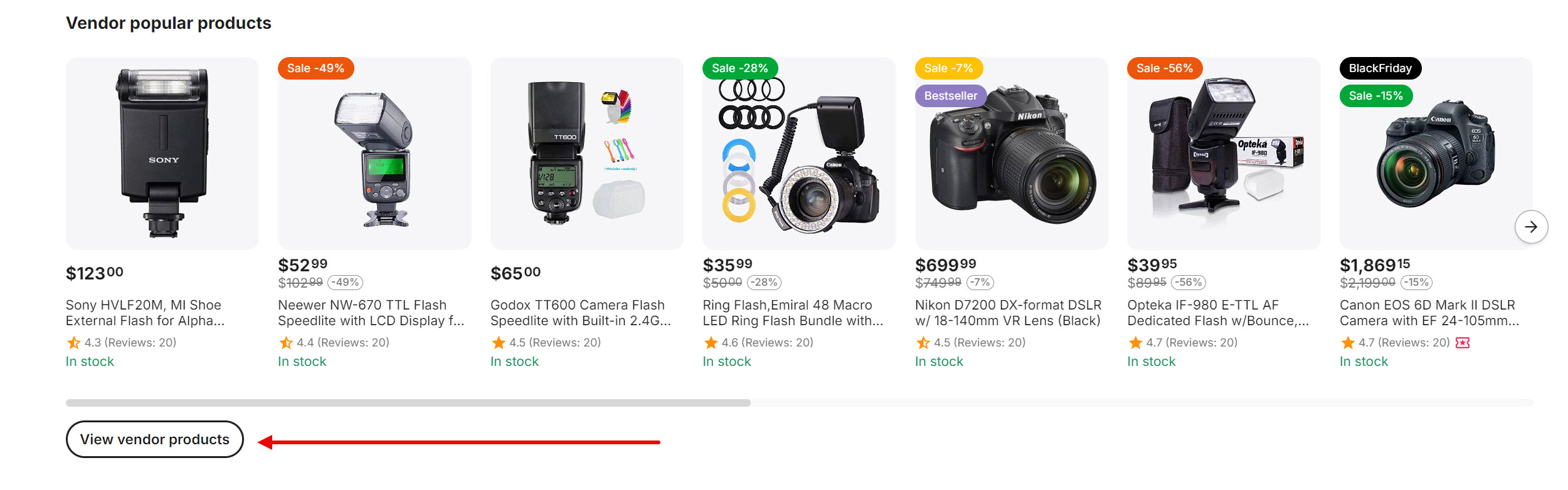
linkBlock "Button (all vendor products) on the page "AB: About vendor"
To create the block follow the steps below:
- Go to the page Website → Themes → Layouts → layout page "AB: About vendor";
- Create the block of template Template;
- Select the template Button "All products of vendor" (only for "About vendor" page).
linkBlock "Vendor contacts" on the page "AB: About vendor"
To create the block follow the steps below:
- Go to the page Website → Themes → Layouts → layout page "AB: About vendor";
- Create the block of template Template;
- Select the template Vendor contacts (only for "About vendor" page).

linkSettings of the block "Vendor information (for vendor about page)"
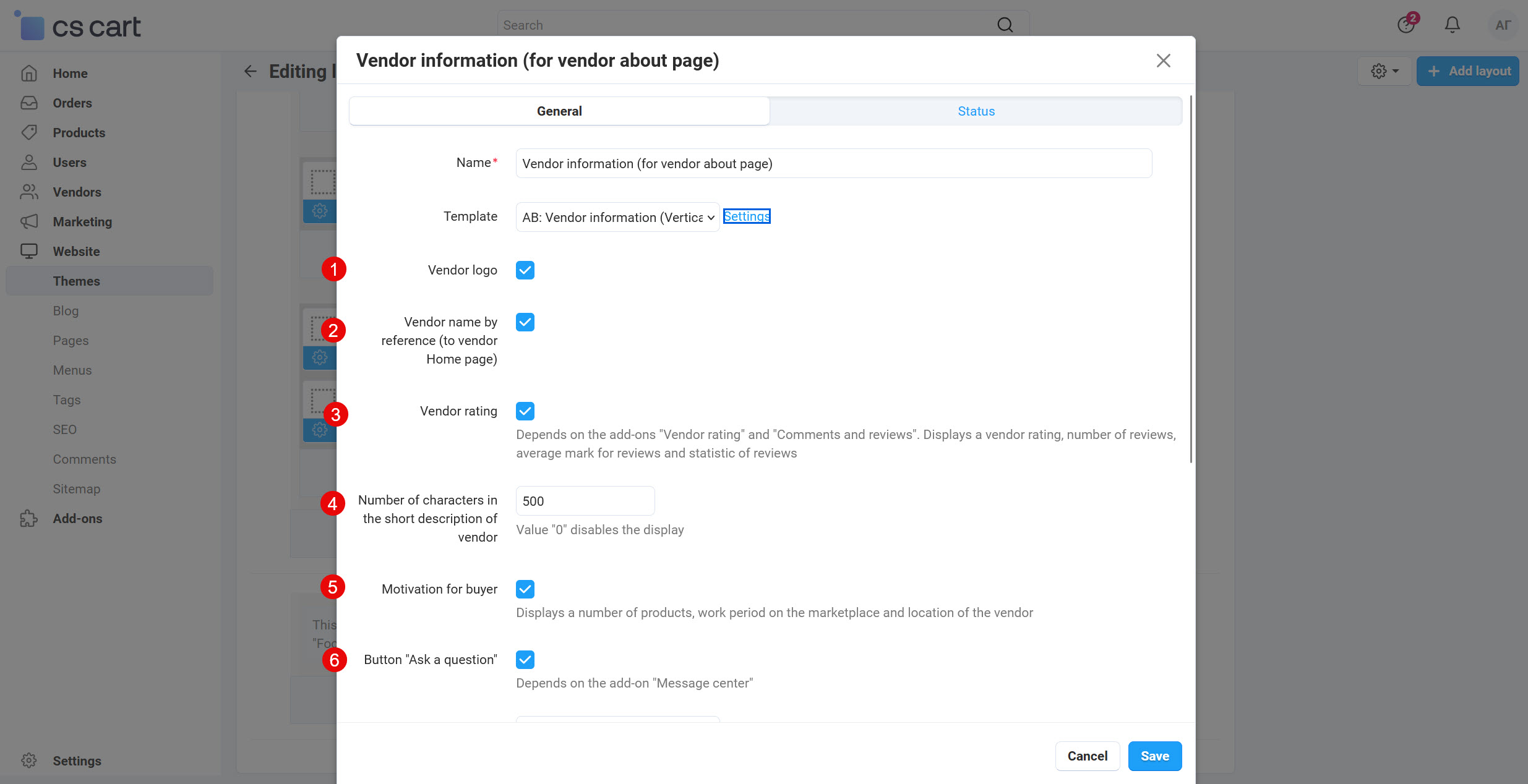
- Vendor logo ‒ displays vendor logo of full view.
- Vendor name by reference (to vendor Home page) ‒ displays vendor name that transfers to Home page of vendor (micro-store).
- Vendor rating ‒ displays a vendor rating, number of reviews, average mark for reviews and statistic of reviews. Depends on the add-ons Vendor rating and Comments and reviews.
- Number of characters in the short description of vendor ‒ allows to set a number of symbols for vendor description. Value
0disables the display. - Motivation for buyer ‒ displays a number of products, work period on the marketplace and location of the vendor.
- Button "Ask a question" ‒ displays the button Ask a question. Depends on the add-on Message center.
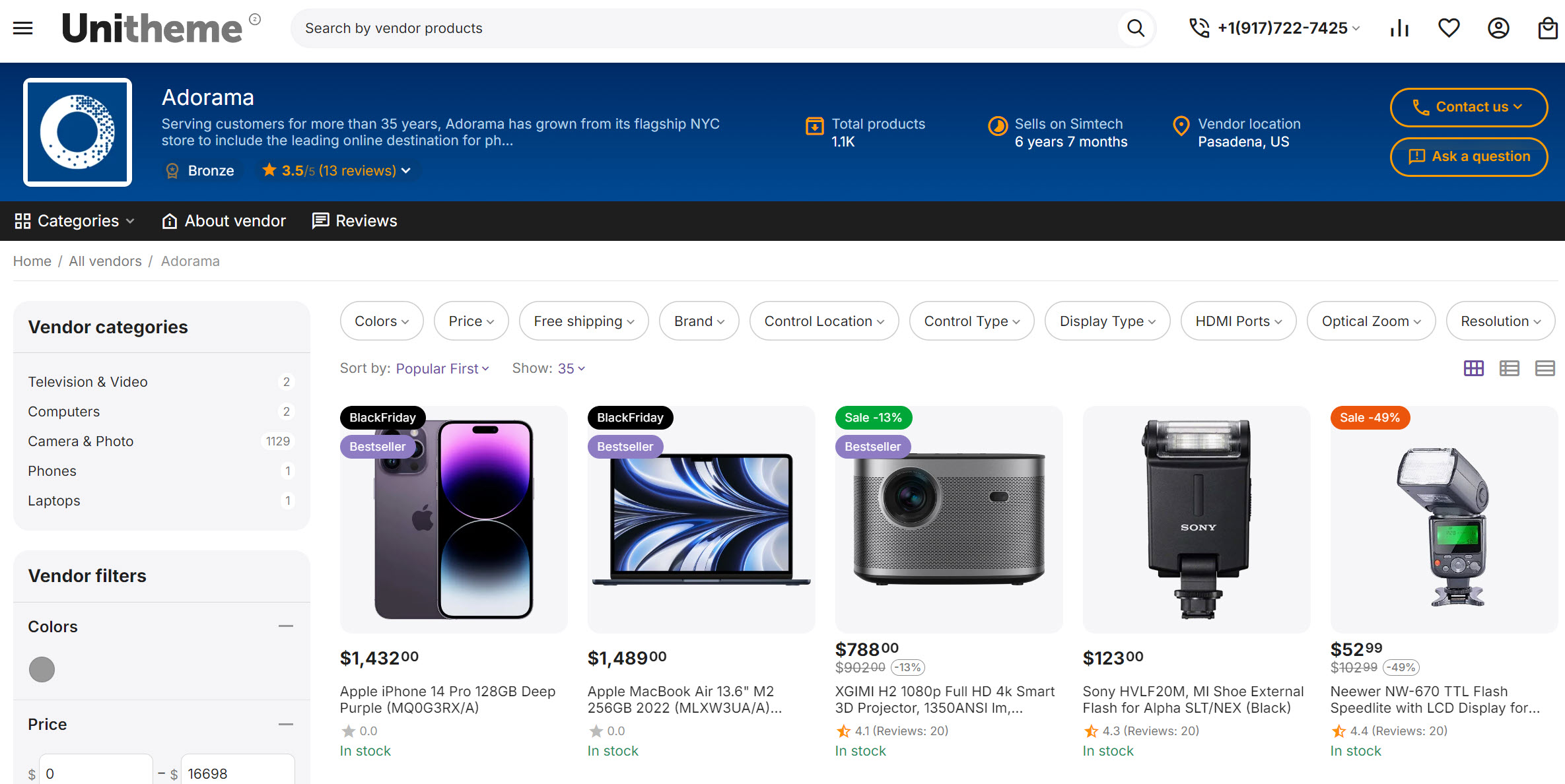
UniTheme2 для Multi-Vendor add-on allows to improve the basic page Vendor products, add your own style and locate additional blocks: Vendor menu and Vendor information, which display total amount of vendor products, activity duration on marketplace, vendor location, vendor rating, vendor reviews buttons Ask a question and Vendor contacts, etc.
linkBlock "Vendor information (for vendor products page)" on the page "AB: Vendor products"
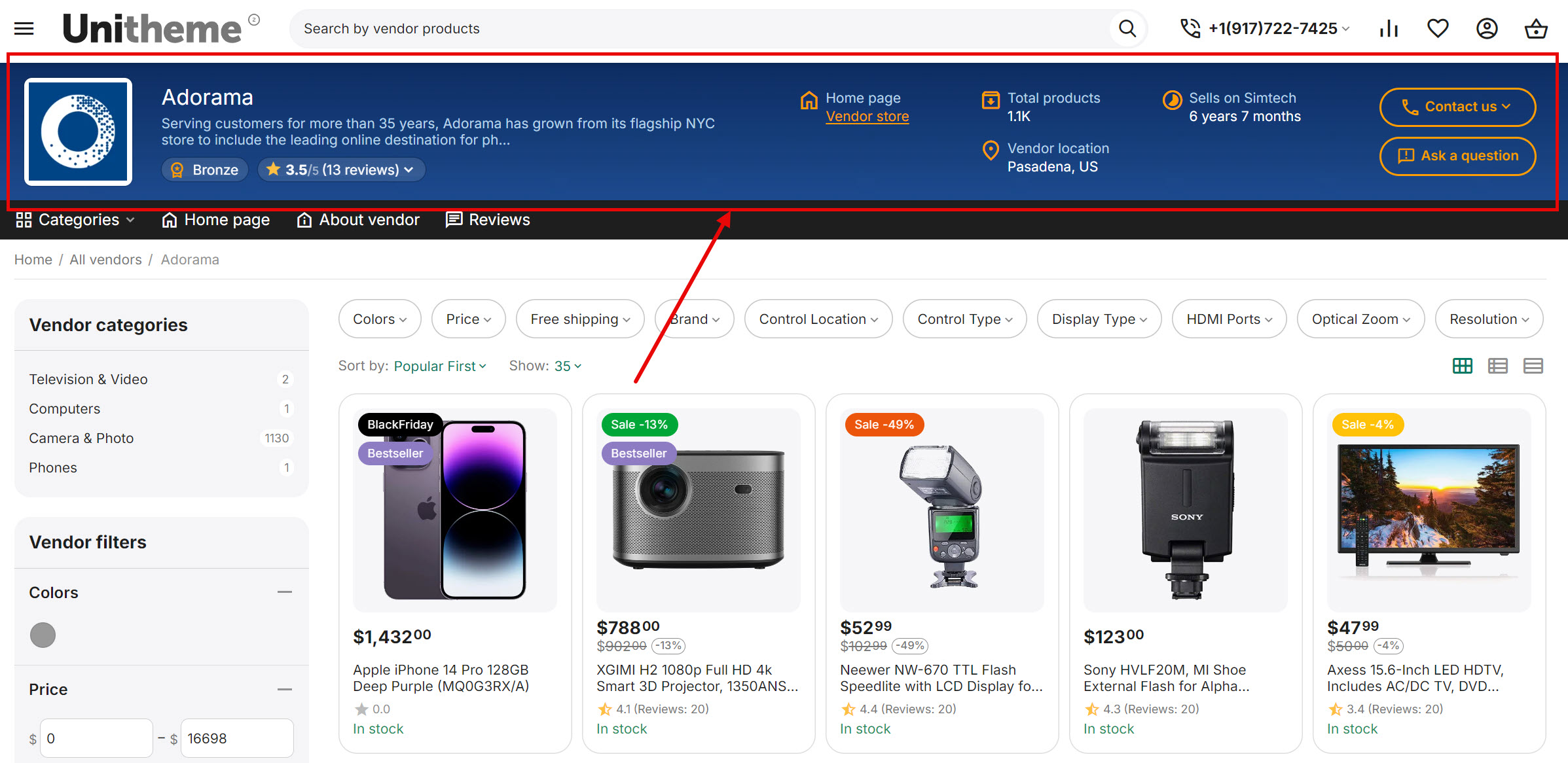
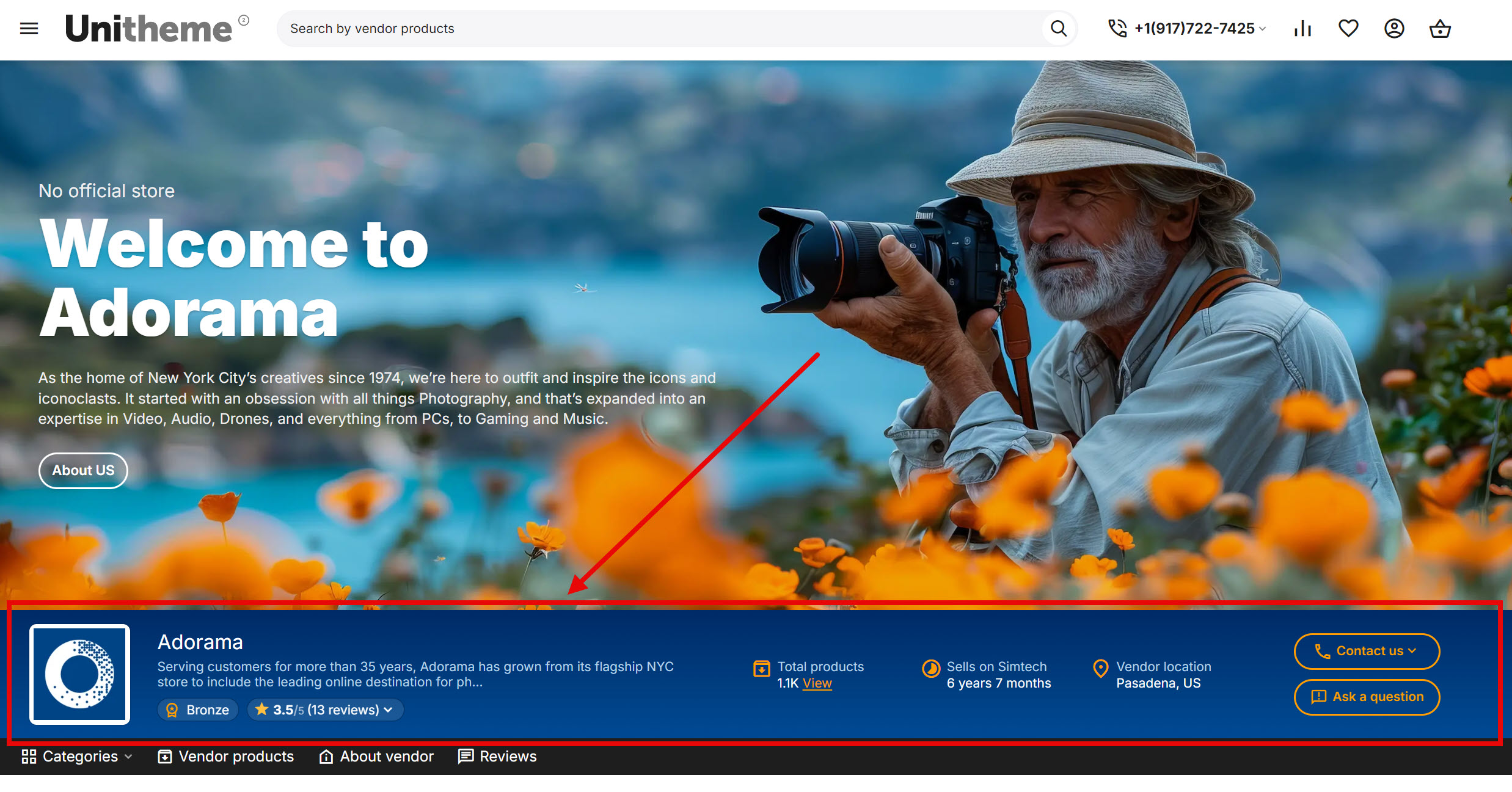
This block is a universal branded "header" placed above the catalog of all products of a specific vendor. It consolidates key vendor data (logo, name, short description, overall rating and vendor review rating, motivation elements, and functional buttons Contact vendor, Contacts, Vendor homepage. This combination provides navigation through their personal sections.
To create the block follow the steps below:
- Go to the page Website → Themes → Layouts → appropriate layout page: "AB: Vendor products", "AB: Vendor micro-store", "AB: Vendor reviews";
- Create the block of template Vendor information;
- Select the template AB: Vendor information;
- Click Settings at the template to set necessary information for display on storefront.
There are color scheme settings for the block Vendor information (see the details in the section AB: Personal design of pages and blocks).
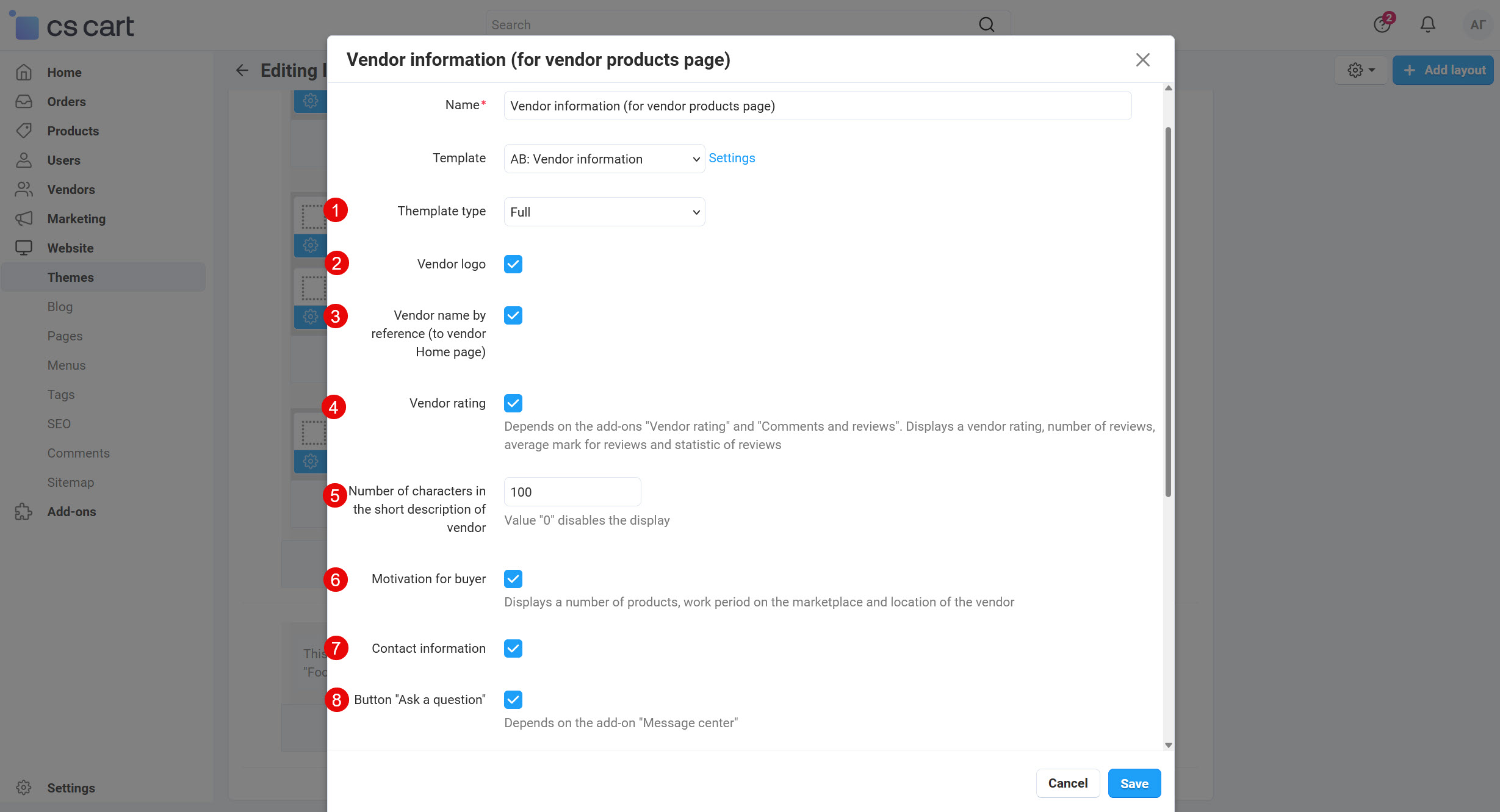
- Template type ‒ there are two templates of display: Full and Compact.
- Vendor logo ‒ displays vendor logo of full view.
- Vendor name by reference (to vendor Home page) ‒ displays vendor name that transfers to Home page of vendor (micro-store).
- Vendor rating ‒ displays a vendor rating, number of reviews, average mark for reviews and statistic of reviews. Depends on the add-ons Vendor rating and Comments and reviews.
- Number of characters in the short description of vendor ‒ allows to set a number of symbols for vendor description. Value
0disables the display. - Motivation for buyer ‒ displays a number of products, work period on the marketplace and location of the vendor.
- Contact information ‒ displays the button Contacts, that allows users to see a contact information of vendor.
- Button "Ask a question" ‒ displays the button Ask a question. Depends on the add-on Message center.
linkBlock "AB: Vendor menu" on the page "AB: Vendor products"
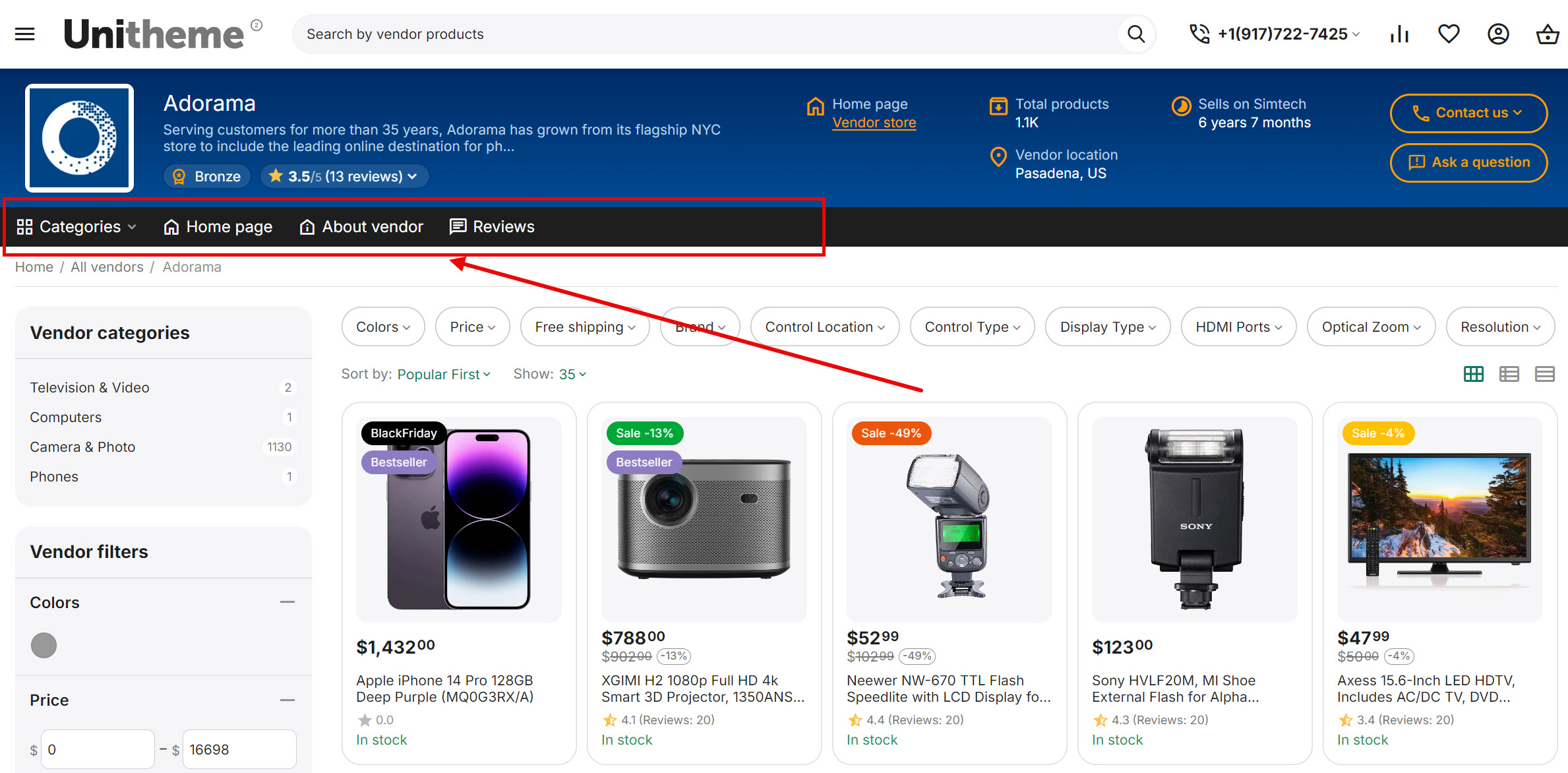
A special menu AB: Vendor menu has been designed to manage sections and view parameters, including color scheme setting.
To create the block follow the steps below:
- Go to the page Website → Themes → Layouts → appropriate layout page: "AB: Vendor products", "AB: Vendor micro-store";
- Create the block of template AB: Vendor menu;
- Select the template AB: Vendor menu;
- In the block go to the tab Content and select sections for navigation to your personal pages of vendor.
There are color scheme settings for the block AB: Vendor menu (see the details in the section AB: Personal design of pages and blocks).
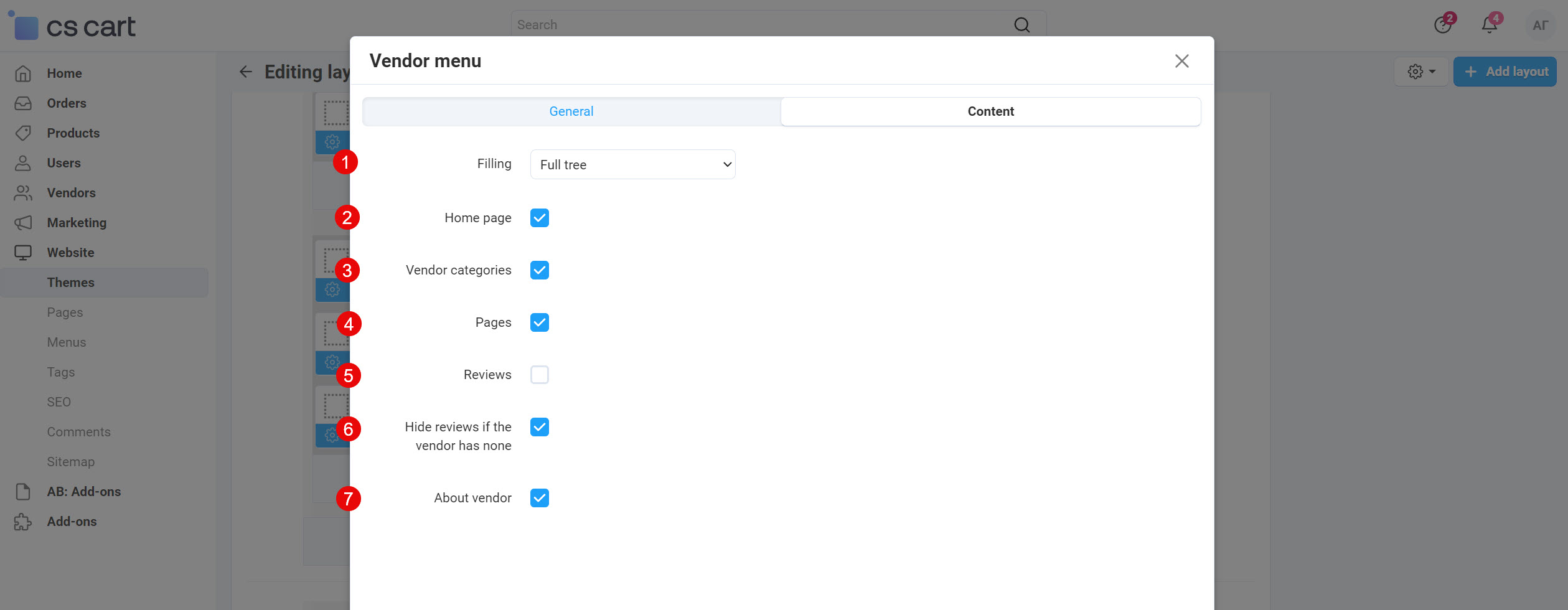
- Filling ‒ the filling Full tree is available;
- Home page ‒ activates the menu section Home page;
- Vendor categories ‒ activates the menu section Vendor categories;
- Pages ‒ activates the menu section Pages;
- Reviews ‒ activates the menu section Reviews;
- Hide reviews if the vendor has none ‒ allows to hide the section Reviews, if there are no reviews;
- About vendor ‒ activates the menu section About vendor.
linkBlock "Vendor categories" with the template "AB: Advanced subcategories menu"
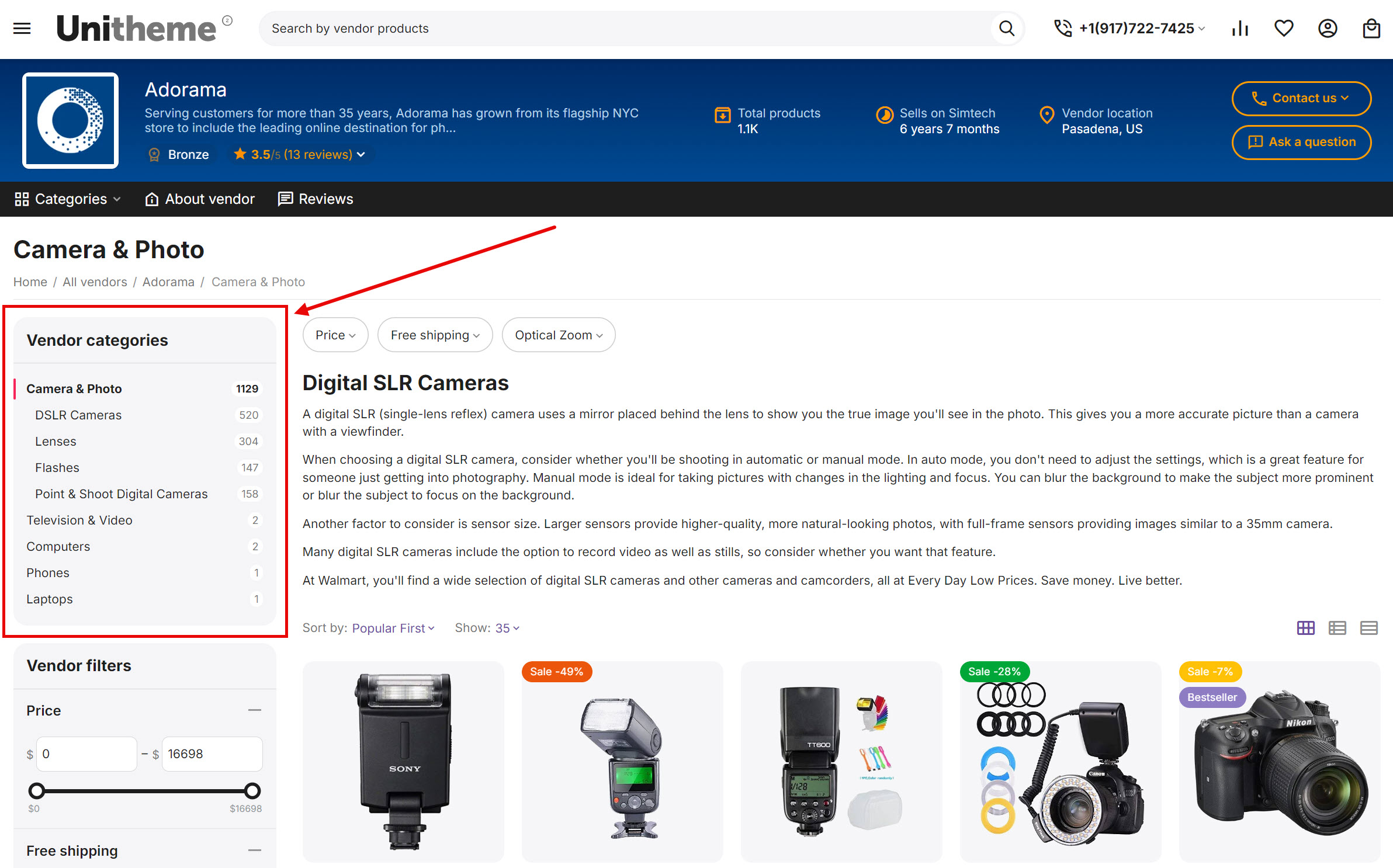
Block Vendor categories adds the possibility to create on the category page a view of the block with dependent categories, concerning current category in the form of list or tree. This block is located on the layout pages AB: Vendor products and AB: Vendor micro-store and includes its settings in the tab Block settings. There you can choose types of dependent categories, which will be used as a content of the block.
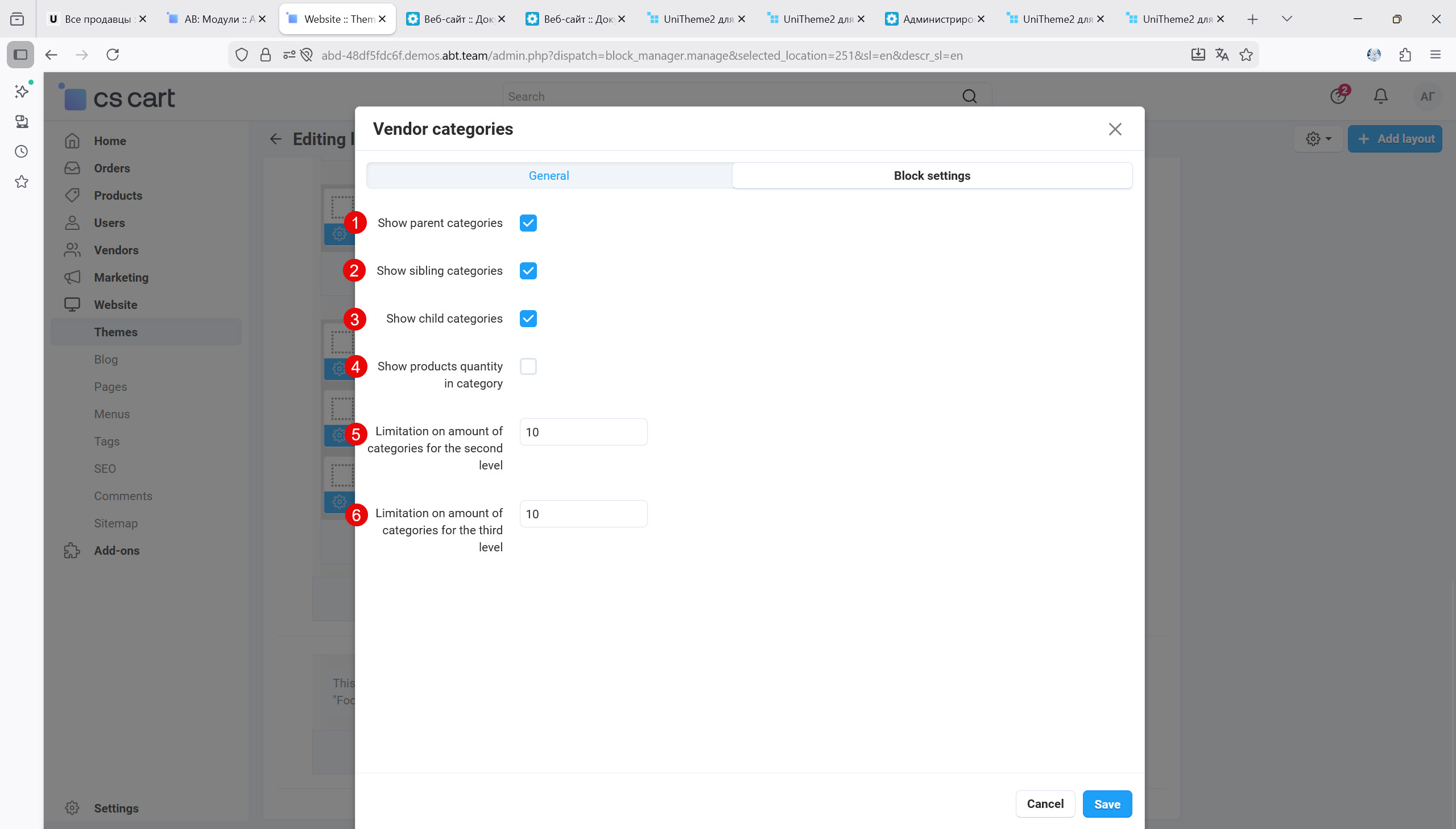
- Show parent categories ‒ display parent categories concerning current one in the block Subcategories.
- Show sibling categories ‒ display sibling categories concerning current one in the block Subcategories.
- Show child categories ‒ display child categories concerning current one in the block Subcategories.
- Show products quantity in category ‒ displays a quantity of products in the categories.
- Limitation on amount of categories for the second level ‒ quantity of categories in the second level that will be shown in the block. If quantity of categories is more than specified, the link More will be displayed. If click the link, all categories of the corresponding level will be displayed.
- Limitation on amount of categories for the third level ‒ quantity of categories in the third level that will be shown in the block. If quantity of categories is more than specified, the link More will be displayed. If click the link, all categories of the corresponding level will be displayed.
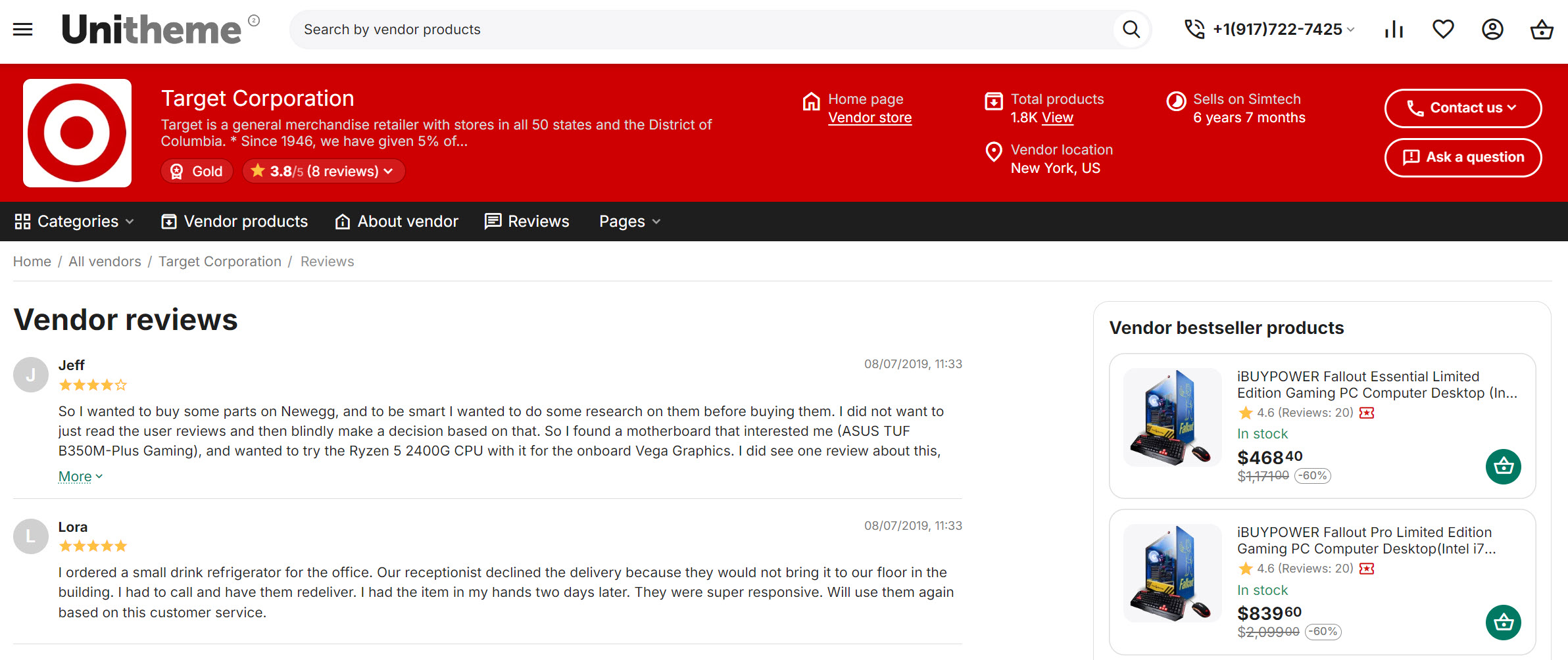
The page AB: Vendor reviews is a critically important element of the trust ecosystem on the marketplace, separating the reputation of the product from the reputation of the one selling it. This specialized page accumulates feedback from buyers concerning exclusively the experience of interacting with a specific vendor. Unlike product reviews, service is evaluated here:
- delivery speed;
- packaging quality;
- communication adequacy;
- problem resolution with returns and warranty cases.
The page does not look like a "general section of the site". It is wrapped in the vendor's branded block (logo, rating, contacts), preserving the context of their storefront and providing convenient navigation.
linkBlock "Vendor information (for vendor products page)" on the page "AB: Vendor reviews"
This block is a universal branded "header" placed above the catalog of all products of a specific vendor. It consolidates key vendor data (logo, name, short description, overall rating and vendor review rating, motivation elements, and functional buttons Contact vendor, Contacts, Vendor homepage. This combination provides navigation through their personal sections.
To create the block follow the steps below:
- Go to the page Website → Themes → Layouts → appropriate layout page: "AB: Vendor products", "AB: Vendor micro-store", "AB: Vendor reviews";
- Create the block of template Vendor information;
- Select the template AB: Vendor information;
- Click Settings at the template to set necessary information for display on storefront.
There are color scheme settings for the block Vendor information (see the details in the section AB: Personal design of pages and blocks).
- Template type ‒ there are two templates of display: Full and Compact.
- Vendor logo ‒ displays vendor logo of full view.
- Vendor name by reference (to vendor Home page) ‒ displays vendor name that transfers to Home page of vendor (micro-store).
- Vendor rating ‒ displays a vendor rating, number of reviews, average mark for reviews and statistic of reviews. Depends on the add-ons Vendor rating and Comments and reviews.
- Number of characters in the short description of vendor ‒ allows to set a number of symbols for vendor description. Value
0disables the display. - Motivation for buyer ‒ displays a number of products, work period on the marketplace and location of the vendor.
- Contact information ‒ displays the button Contacts, that allows users to see a contact information of vendor.
- Button "Ask a question" ‒ displays the button Ask a question. Depends on the add-on Message center.
linkBlock "Vendor menu" on the page "AB: Vendor reviews"
A special menu AB: Vendor menu has been designed to manage sections and view parameters, including color scheme setting.
To create the block follow the steps below:
- Go to the page Website → Themes → Layouts → appropriate layout page: "AB: Vendor products", "AB: Vendor micro-store";
- Create the block of template AB: Vendor menu;
- Select the template AB: Vendor menu;
- In the block go to the tab Content and select sections for navigation to your personal pages of vendor.
There are color scheme settings for the block AB: Vendor menu (see the details in the section AB: Personal design of pages and blocks).
- Filling ‒ the filling Full tree is available;
- Home page ‒ activates the menu section Home page;
- Vendor categories ‒ activates the menu section Vendor categories;
- Pages ‒ activates the menu section Pages;
- Reviews ‒ activates the menu section Reviews;
- Hide reviews if the vendor has none ‒ allows to hide the section Reviews, if there are no reviews;
- About vendor ‒ activates the menu section About vendor.
linkBlock "Vendor reviews" on the page "AB: Vendor reviews"
To create the block follow the steps below:
- Go to the page Website → Themes → Layouts → layout page "AB: Vendor reviews";
- Create the block of template Template;
- Select the template AB: Block: Title;
- Click Settings at the template to set necessary parameters.
At the block title you can use html tags mentioned below:
<mark>text</mark>, <u>text</u>, <b>text</b>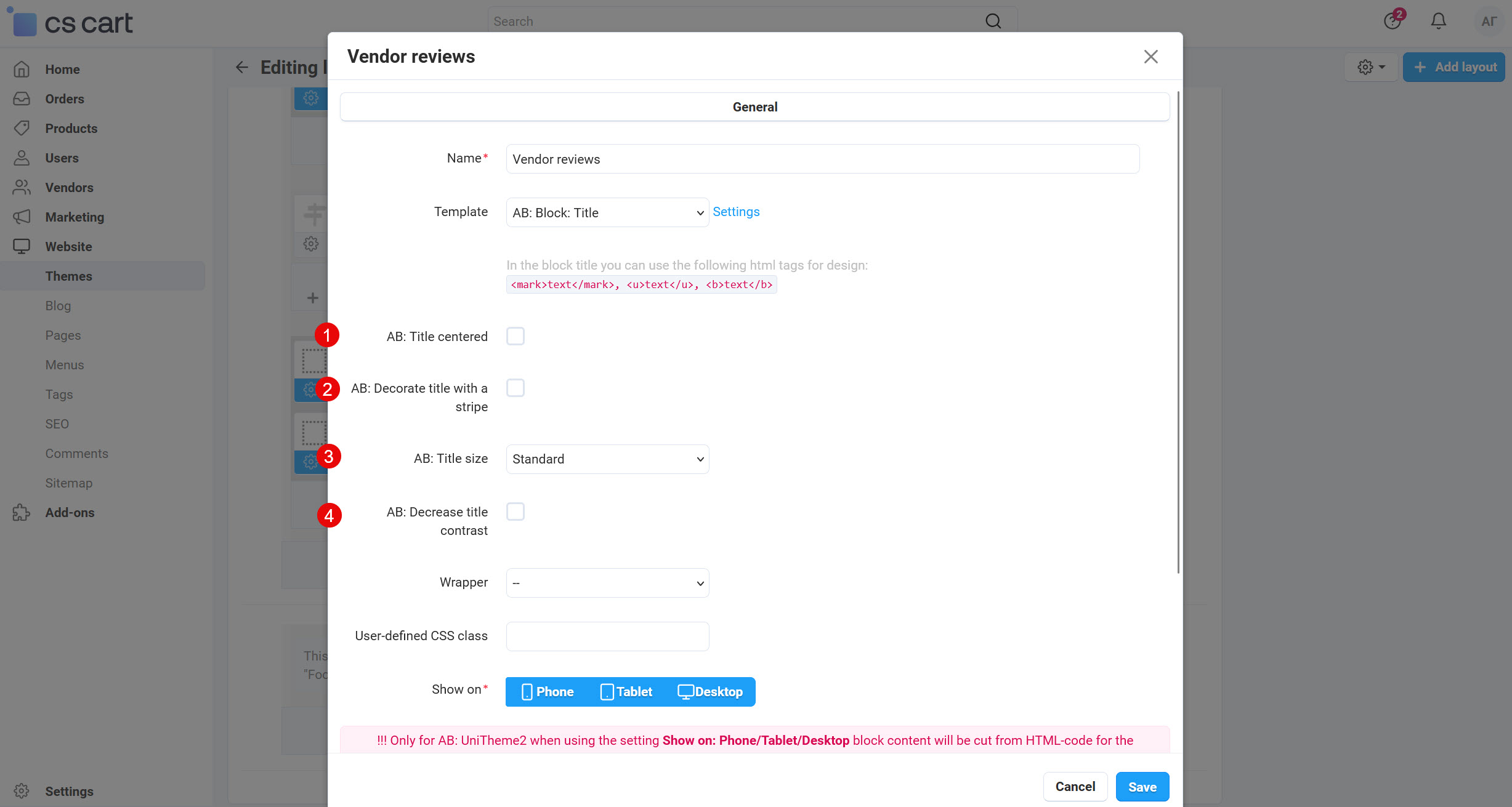
- AB: Title centered ‒ allows to locate title in the center.
- AB: Decorate title with a stripe ‒ allows to add a decorated stripe to title.
- AB: Title size ‒ allows to select a title size: Standard, Large, Largest.
- AB: Decrease title contrast ‒ allows to manage the title contrast.
There is a possibility to create your own page, where you, as vendor, can display any information about your store.
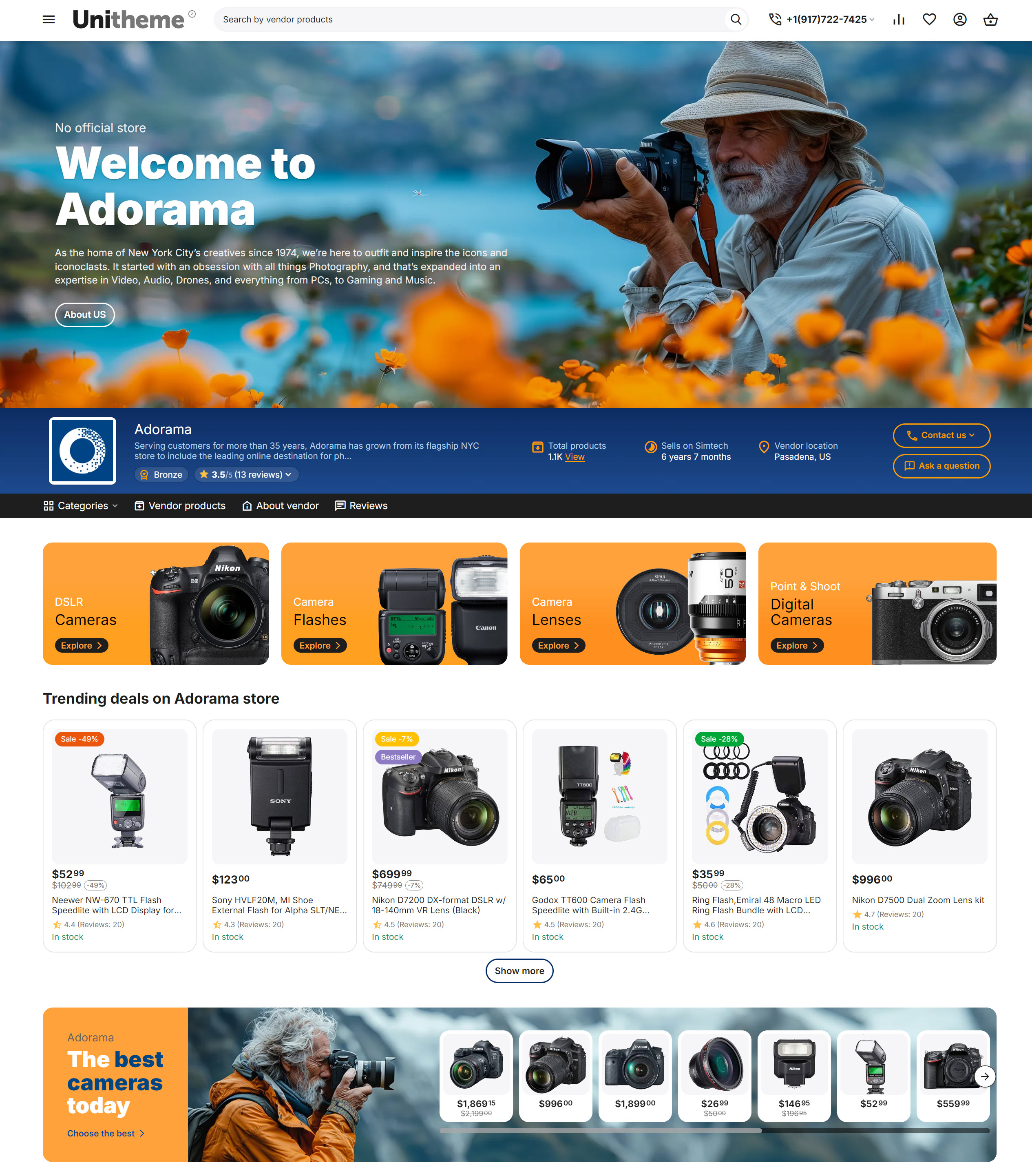
If you wish to set the page AB: Vendor micro-store and create a maximum similarity to demo-website of the theme, you have to follow the steps to set blocks and its elements. You may look at the example of this page on the link.
Step-by-step instruction of vendor micro-store is provided below in this section.
link1. Restrictions on the page "Vendor plans"
The main administrator/ marketplace holder must grant access for vendor to micro-store, banners and personal design of pages and blocks. Access to the functionality that has been mentioned above can be provided on the page Vendors → Vendor plans → [plan name] → "Restrictions" tab. Besides the main setting Vendor microstore, the add-on UniTheme2 MV adds its own settings.
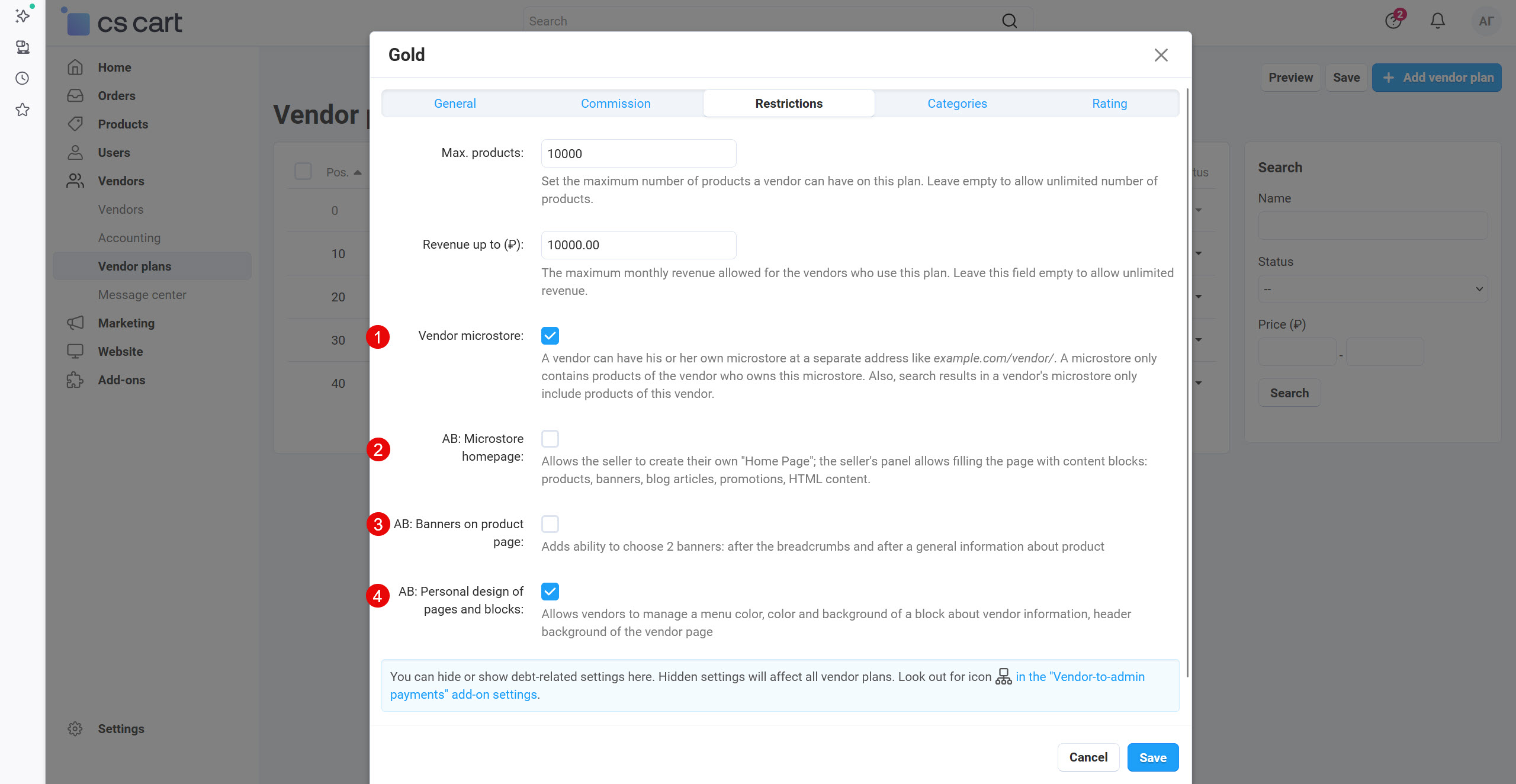
- Vendor microstore: ‒ A vendor can have his or her own microstore at a separate address like
example.com/vendor/. A microstore only contains products of the vendor who owns this microstore. Also, search results in a vendor's microstore only include products of this vendor.
For more details see the section "My micro-store" in the vendor panel. - AB: Micro-store homepage ‒ Allows vendor to create its own Home Page and allows to fill the page in the vendor's panel with content blocks: products, banners, blog articles, promotions, HTML content.
- AB: Banners on product page ‒ Adds ability to choose 2 banners: after the breadcrumbs and after a general information about product. Special demo-banners were designed for vendors, which are recommended to add to get acquaint with the functionality and get expected result as soon as possible. Vendors have an access to banners settings on the page Seller info → "AB: Banners on product page" tab. For more details see the section AB: Banners on product page.
- AB: Personal design of pages and blocks ‒ Allows vendors to manage a menu color, color and background of a block about vendor information, header background of the vendor page. Vendors have an access to banners settings on the page Seller info → "Style" tab. For more details see the section AB: Personal design of pages and blocks.
link2. "My micro-store" in the vendor panel
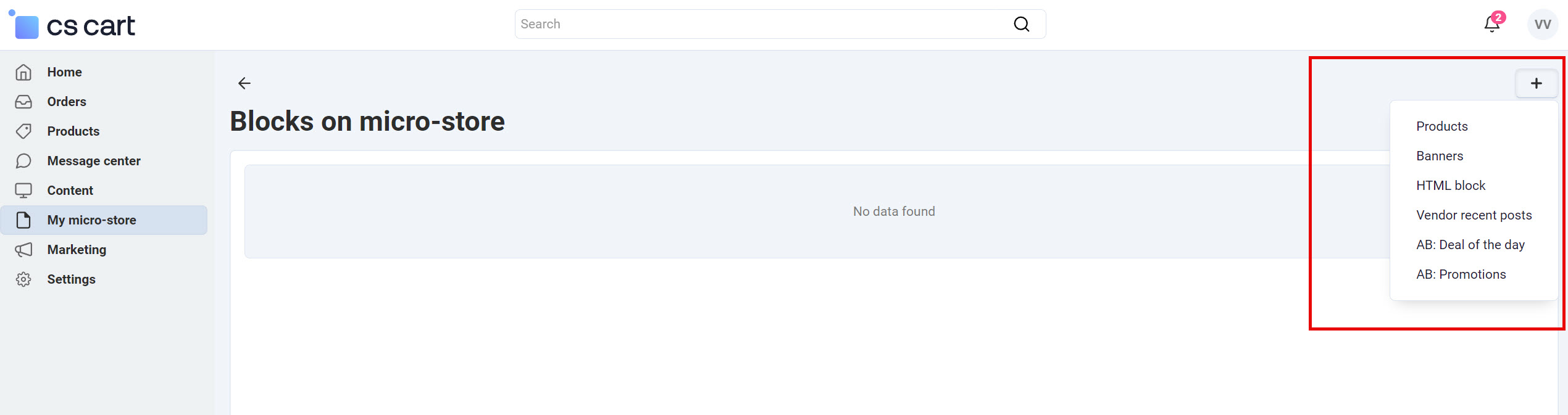
When the setting AB: Micro-store homepage is enabled by main administrator/ marketplace holder, the section My micro-store will be available in the vendor panel. On this page the vendor can manage the following content:
- Products ‒ product block with all templates and appropriate settings.
- Banners ‒ banner block with all templates and appropriate settings.
- HTML block ‒ block with the ability to add HTML data.
- Vendor recent posts ‒ block with a list of vendor posts.
- AB: Deal of the day ‒ block with the promotion products. Depends on of the add-on AB: Advanced promotions.
- AB: Promotions ‒ block with a list of all promotions. Depends on of the add-on AB: Advanced promotions.
linkBanner for the page "AB: Vendor micro-store"
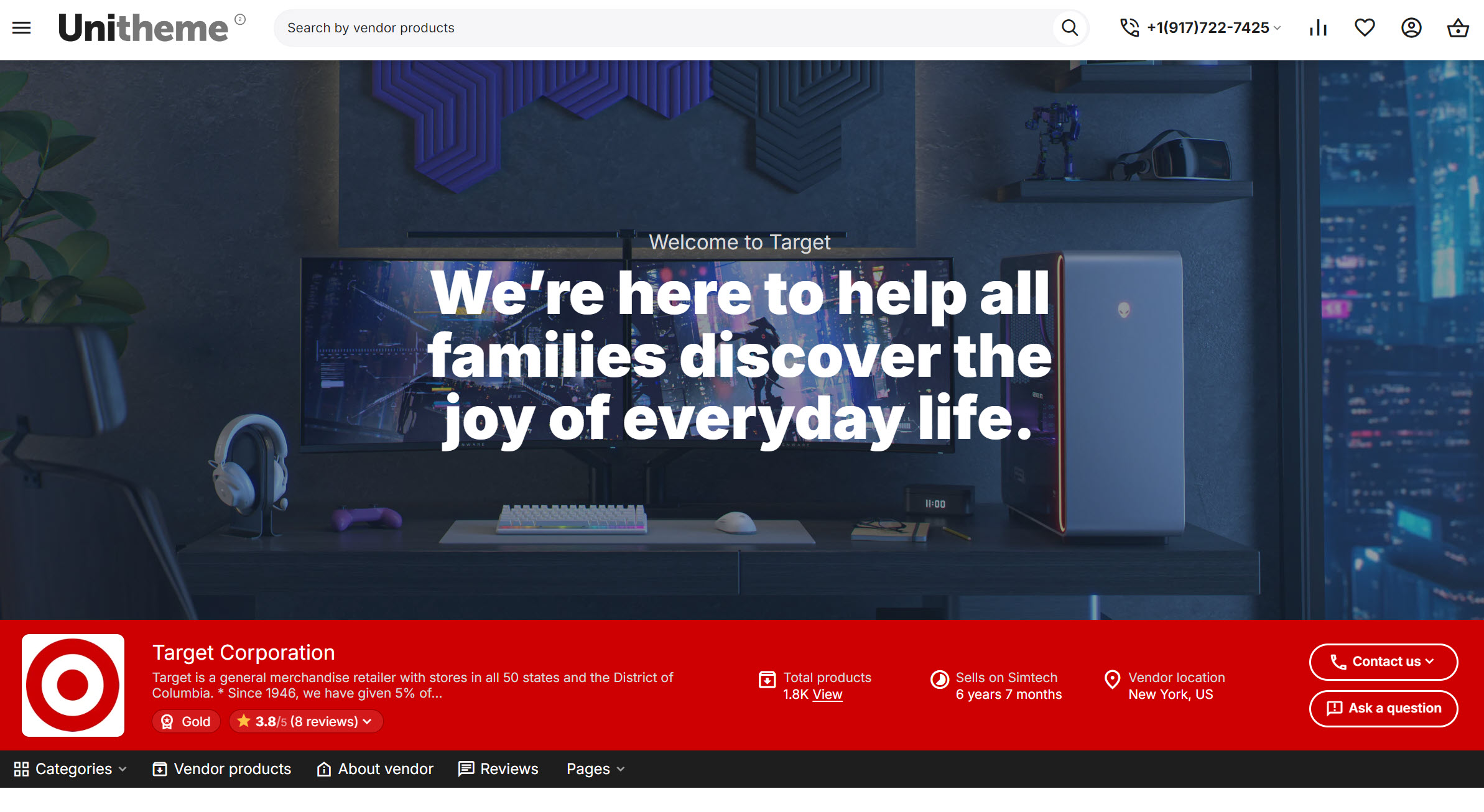
A special filling AB: Banner of Home page of vendor was designed for the template AB: Advanced banner, that should be used on the page AB: Vendor micro-store.
To create a block with banner follow the steps below:
- Go to the page Website → Themes → Layouts → layout page "AB: Vendor micro-store";
- Create the block of template Banners;
- Select the template AB: Advanced banner;
- Click Settings at the template to set necessary settings;
- Go to the Content tab in the block and in the field Filling select AB: Banner of Home page of vendor.
linkBlock "Vendor information (for vendor products page)" on the page "AB: Vendor micro-store"
This block is a universal branded "header" placed above the catalog of all products of a specific vendor. It consolidates key vendor data (logo, name, short description, overall rating and vendor review rating, motivation elements, and functional buttons Contact vendor, Contacts, Vendor homepage. This combination provides navigation through their personal sections.
To create the block follow the steps below:
- Go to the page Website → Themes → Layouts → appropriate layout page: "AB: Vendor products", "AB: Vendor micro-store", "AB: Vendor reviews";
- Create the block of template Vendor information;
- Select the template AB: Vendor information;
- Click Settings at the template to set necessary information for display on storefront.
There are color scheme settings for the block Vendor information (see the details in the section AB: Personal design of pages and blocks).
- Template type ‒ there are two templates of display: Full and Compact.
- Vendor logo ‒ displays vendor logo of full view.
- Vendor name by reference (to vendor Home page) ‒ displays vendor name that transfers to Home page of vendor (micro-store).
- Vendor rating ‒ displays a vendor rating, number of reviews, average mark for reviews and statistic of reviews. Depends on the add-ons Vendor rating and Comments and reviews.
- Number of characters in the short description of vendor ‒ allows to set a number of symbols for vendor description. Value
0disables the display. - Motivation for buyer ‒ displays a number of products, work period on the marketplace and location of the vendor.
- Contact information ‒ displays the button Contacts, that allows users to see a contact information of vendor.
- Button "Ask a question" ‒ displays the button Ask a question. Depends on the add-on Message center.
linkBlock "AB: Vendor menu" on the page "AB: Vendor micro-store"
A special menu AB: Vendor menu has been designed to manage sections and view parameters, including color scheme setting.
To create the block follow the steps below:
- Go to the page Website → Themes → Layouts → appropriate layout page: "AB: Vendor products", "AB: Vendor micro-store";
- Create the block of template AB: Vendor menu;
- Select the template AB: Vendor menu;
- In the block go to the tab Content and select sections for navigation to your personal pages of vendor.
There are color scheme settings for the block AB: Vendor menu (see the details in the section AB: Personal design of pages and blocks).
- Filling ‒ the filling Full tree is available;
- Home page ‒ activates the menu section Home page;
- Vendor categories ‒ activates the menu section Vendor categories;
- Pages ‒ activates the menu section Pages;
- Reviews ‒ activates the menu section Reviews;
- Hide reviews if the vendor has none ‒ allows to hide the section Reviews, if there are no reviews;
- About vendor ‒ activates the menu section About vendor.
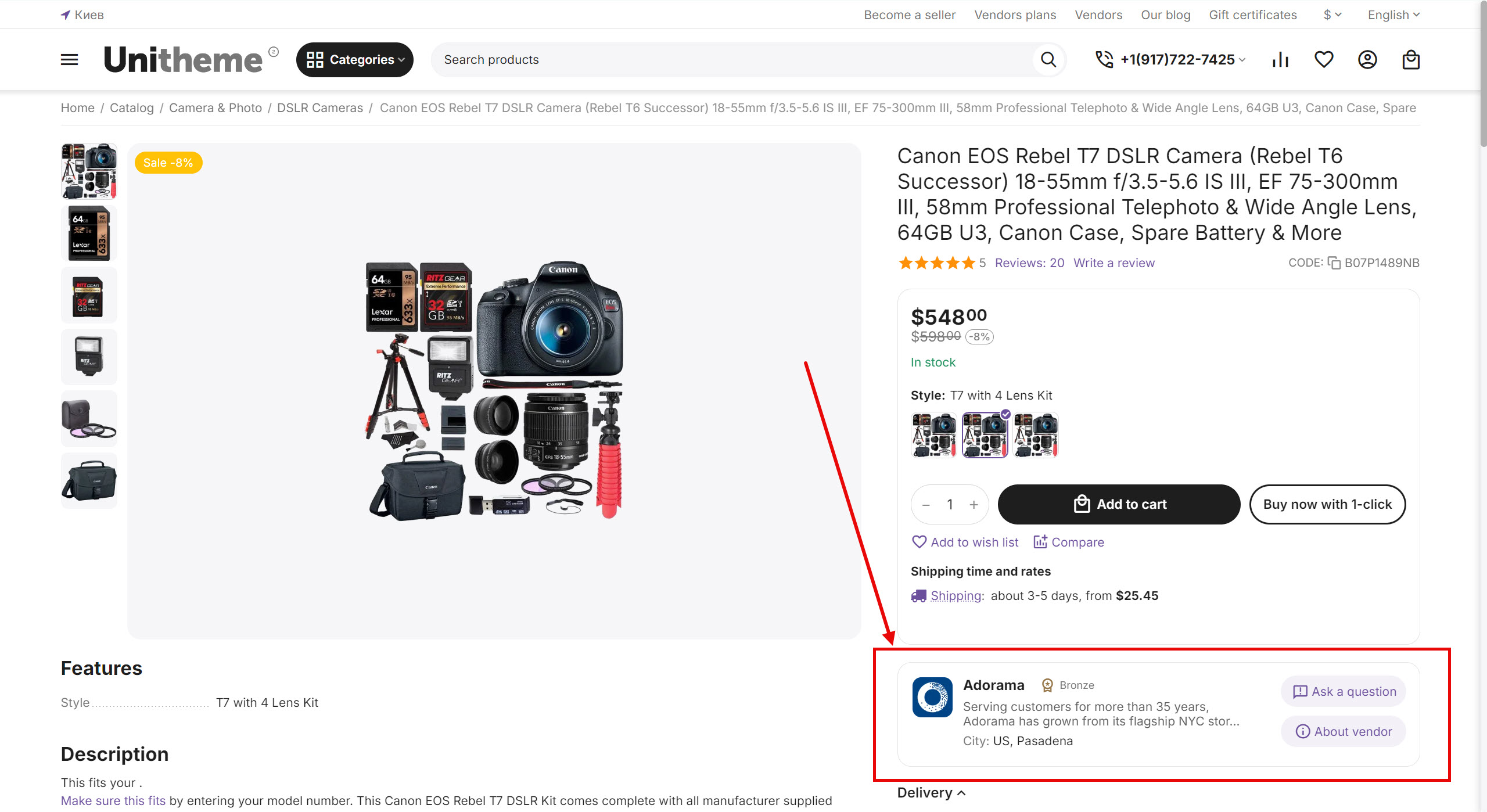
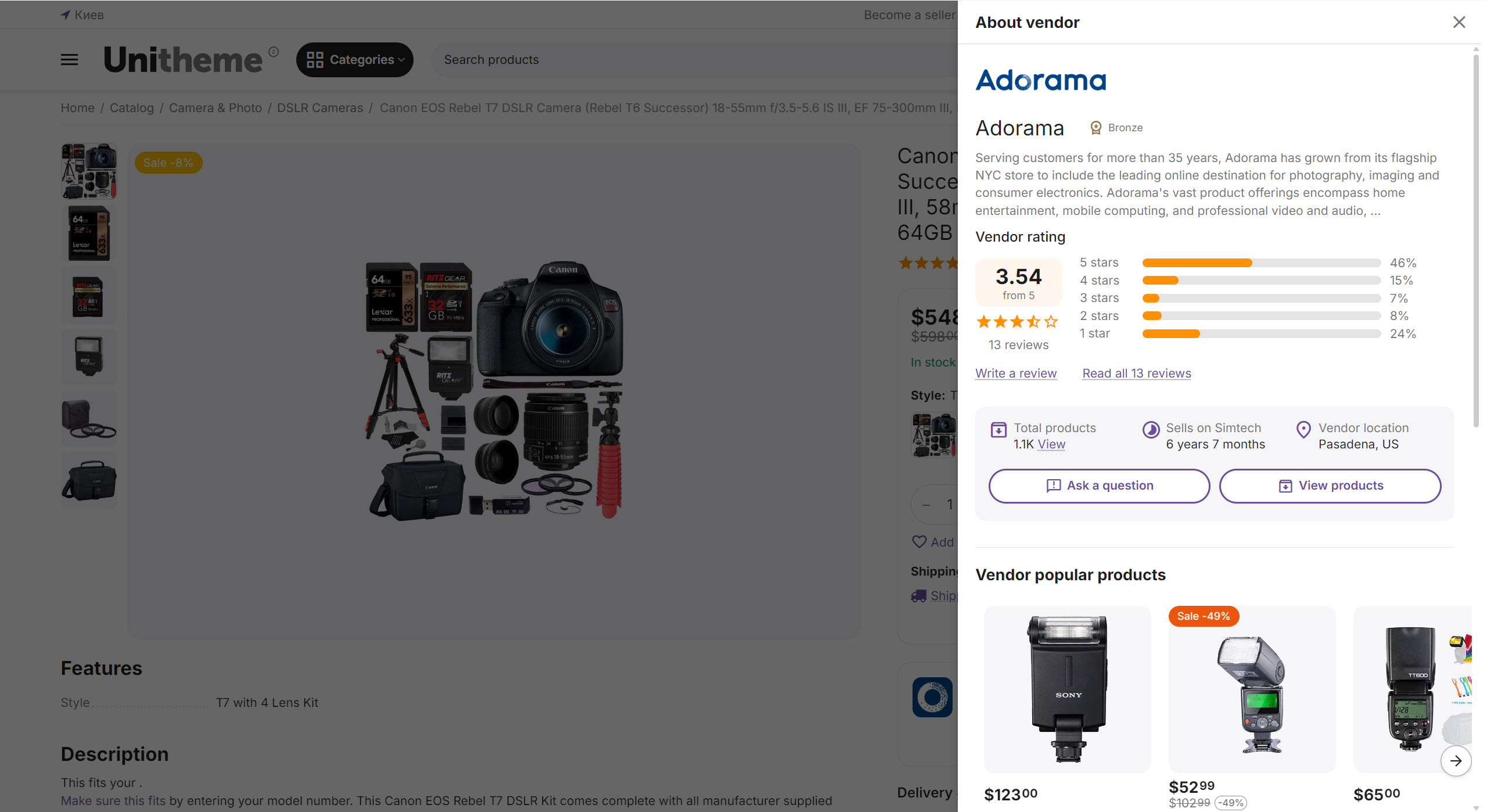
On the product page there is a block with vendor information. The filling of the block is managed with UniTheme2 for Multi-Vendor settings (see the details in the section Block with vendor information on the Product page) and combines the following information:
- vendor logo of short view;
- vendor name;
- short vendor description;
- vendor location;
- functional buttons: Ask question, About vendor.
The button About vendor has a double functionality, that depends on the setting Show panel with a detailed vendor information (located in the settings page UniTheme2 → "Product" tab → Block with vendor information):
- If the setting is disabled: the button works as a standard link. Upon clicking, the user leaves the product card and goes to the vendor's separate profile page on the marketplace.
- If the setting is active: clicking the About vendor button activates the Sidebar. It slides out smoothly from the side, covering part of the content but without reloading the page.
linkVendor information in product lists and product blocks
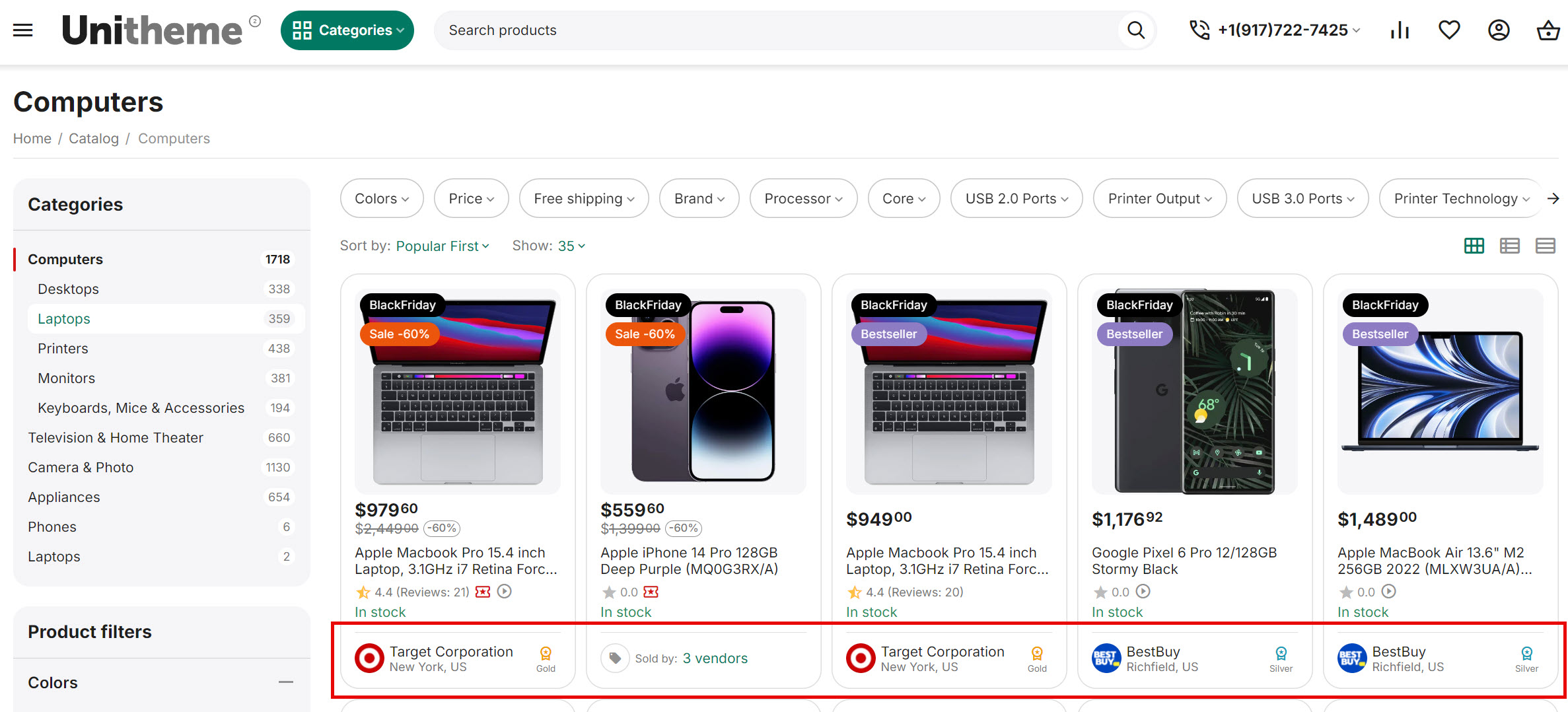
UniTheme2 for Multi-Vendor add-on allows to improve the basic category page and adds the following information: vendor logo, vendor name that transfers to Home page of vendor, vendor rating, vendor location.
All displayed information can be managed with theme settings (see the details in the section Block with vendor information on the Product lists page).
linkDisplay exceptionally vendor products in the product block on the product page and "Vendor products"
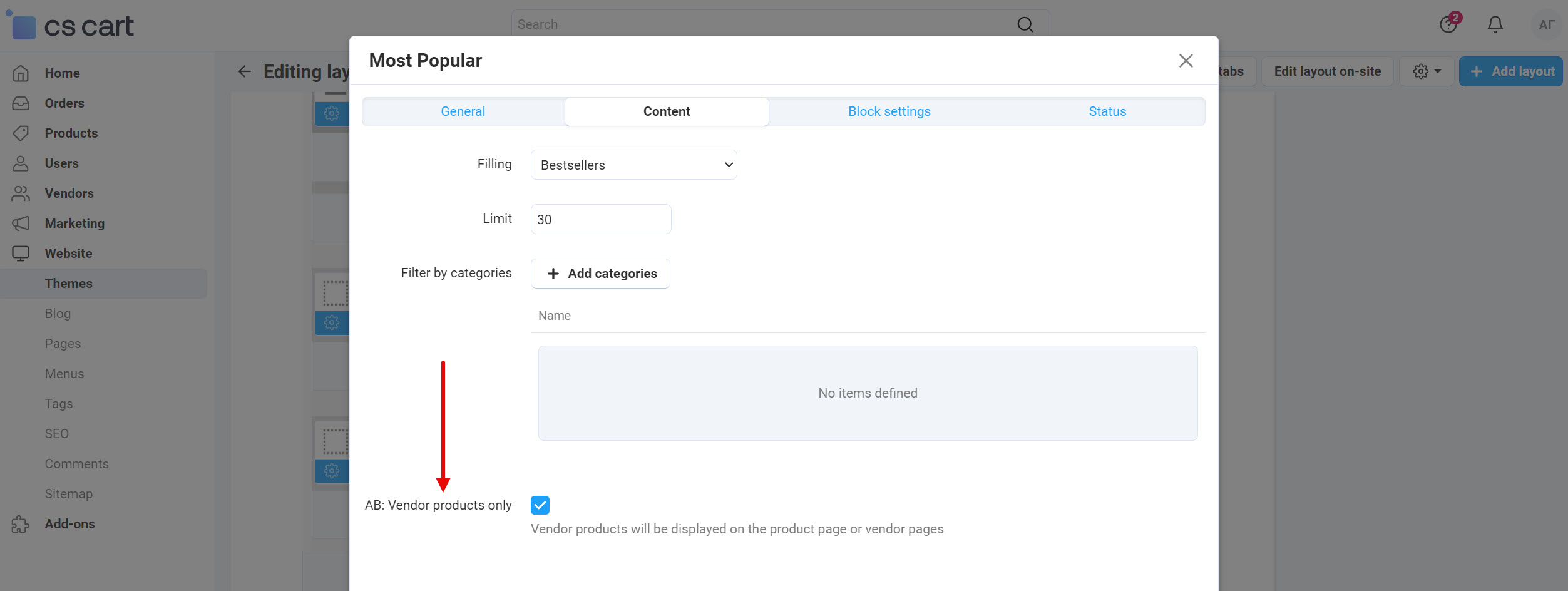
There is a possibility to display products exceptionally of specified vendor in the product block. Accordingly, only products sold by this vendor can be presented.
It can be done on the following vendor pages:
- AB: Vendor products;
- AB: About vendor;
- AB: Vendor micro-store;
- AB: Vendor reviews;
- Product page of particular vendor.
To activate the setting AB: Vendor products only, that handles this functionality, the main administrator/ marketplace holder must activate the setting AB: Micro-store homepage (located Vendors → Vendor plans → [plan name] → "Restrictions" tab). After that, the setting AB: Vendor products only will be available in the settings of product blocks in the tab Content. This setting can be used with the following fillings:
- Newest;
- Most popular;
- Bestsellers;
- On sale;
- Similar;
- Rating.
linkIntegrations
 UniTheme2 for Multi-Vendor edition of CS-CartМинимальная версия: 4.19.1.a
 Extended promotionsМинимальная версия: 3.11.0
The vendor can add to his micro-store blocks "AB: Deal of the day" and "AB: List of promotions". To do this follow the steps below:
- Install CS-Cart add-on Vendor privileges and on the page Users → User groups → [group name] grant full access for the add-on AB: Advanced promotions.
- Install CS-Cart add-on Direct Customer-to-Vendor Payments.
- The main administrator/ marketplace holder must grant access for vendor to micro-store: the setting AB: Micro-store homepage, that is located on the page Vendors → Vendor plans → [plan name] → "Restrictions" tab.
- When three items, mentioned above, are done, the vendor should go to the page Vendor panel → My micro-store and click Add [+].
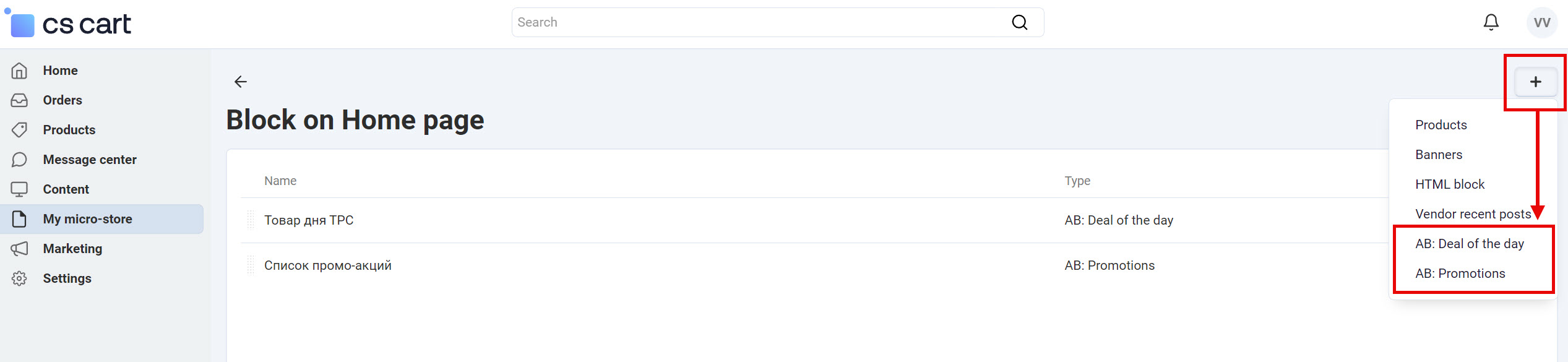
Pay attention that vendor should have access to Promotions that is located on the page Users → User groups → [group name] → "Marketing privileges" section → Promotions. This privilege allows vendor to create his own promotions on the page Vendor panel → Marketing → Promotions.
linkHow to update
AB: Add-ons Manager will notify you about available updates (you will see an indicator of new alerts). The recommended way is to update via the CS-Cart Upgrade center (a regular procedure of the platform). This method will allow lossless configuration of the transition to the new add-on version, that is guaranteed to be compatible with your CS-Cart platform version.
To make updates procedure:
- Go to the Administration panel → Settings → Upgrade center;
- Find the appropriate update among the available updates and click the Update button;
- Follow all the instructions, that will be shown during the upgrade procedure;
- Clear CS-Cart cache and start using new add-on version.
linkList of releases
Subscribe to our Telegram-channel to get info about new releases.
v4.19.1.a from 29 January 2026
New features and improvements:
[+] Vendor information in the main product listings. Available settings include: vendor logo, vendor name, vendor address, and vendor rating. You can configure the display of vendor information across all main product lists, with the ability to adjust visibility separately for each device. Learn more
For more details, please, refer to the documentation.
[+] The “Vendor Information” block for the “Vendor Products” and “Vendor Home Page” pages. This block is an universal branded header placed above the product catalog of a specific vendor. It consolidates key vendor data (logo, name, short description, overall rating and review-based rating), motivational elements, and functional buttons (“Contact vendor”, “Contacts”, “Vendor home page”) that provides navigation across the vendor's personal sections. Learn more
For more details, please, refer to the documentation.
[+] Vendor Home Page (available in layouts and in the vendor panel). This is premium functionality that turns a vendor's marketplace account into a full-fledged independent online store with its own marketing tools. The page can display the following blocks: banners, vendor information, search within the vendor's products, vendor section menu, vendor categories, as well as a set of blocks that the vendor can add independently (products, banners, blog articles, promotions, HTML content). Learn more
For more details, please, refer to the documentation.
[+] “Vendor Reviews” page (available in the layout). This dedicated page aggregates customer feedback related exclusively to the experience of interacting with a specific vendor. Learn more
For more details, please, refer to the documentation.
[+] In the vendor admin page, on the page “Seller Info”, on the “Logos” tab, an option to upload a compact vendor logo has been added. The compact logo has a square shape and is used to identify the vendor in small UI elements where a rectangular logo appears unclear or visually weak at compact sizes.
For more details, please, refer to the documentation.
[+] In product blocks, located on vendor pages, in the “Content” tab, a new setting “AB: Vendor products only” has been added. When any type except “Manual” is selected (for example, “Bestsellers”), this setting allows displaying products of a specific vendor on vendor pages.
For more details, please, refer to the documentation.
[+] In the vendor admin page, on the page “Seller Info”, a new tab “AB: Banners on product page” has been added. The tab is available when the option of vendor pricing plan “AB: Banners on the product page” is enabled. It includes the settings “After product breadcrumbs” and “After main information about product”, allowing vendors to select banners to display on their product pages.
For more details, please, refer to the documentation.
[+] In the vendor admin page, on the page “Seller Info”, a new tab “Design” has been added. The tab is available when the option of vendor pricing plan “AB: Personal design of pages and blocks” is enabled. There are settings for the vendor's personal color scheme (brand identity) and the ability to select the main banner for the header of the vendor's home page. Learn more
For more details, please, refer to the documentation.
[+] In the vendor admin page, on the page “Seller Info”, a new tab “Social Networks” has been added. There are fields are available to add links to selected social networks, which are displayed in the “Vendor Information” and “Vendor Contacts” blocks.
For more details, please, refer to the documentation.
[+] In the color scheme settings, in the “Vendor” section, global color settings for all vendors have been added for the elements of the “Vendor Information” block and the vendor menu.
For more details, please, refer to the documentation.
[+] In the vendor admin page, on the page “Seller Info”, in the “Description” tab, a new field “Short Description” has been added. This field is displayed in the “Vendor Information” block on vendor pages and on the product page.
For more details, please, refer to the documentation.
Functionality changes:
[*] The “Vendor Information” block on the product page is dedicated to the seller of the specific product. New components have been added to the block: a compact vendor logo, vendor location, and a side panel with full vendor information that opens when clicking the “About the vendor” button. Display settings are available for: compact vendor logo, vendor name, vendor snippet (trimmed by character count), vendor city and country, as well as the “Ask a question” and “About the vendor” buttons. Learn more
For more details, please, refer to the documentation.
[*] "Common Products for Vendors" add-on. The logic and design of common product elements have been updated.
Information about vendor ownership is now displayed in all main product listings. On the common product page, a compact block with a list of vendors offering this product (analogy with Buy Box) has been added to the area of highest user attention, next to the price, availability, and the “Buy” button. The block displays all vendors of the product in a compact form using a ranking system rather than a random order. The design and functionality of the main “Vendors of this product” block have also been updated. Learn more
For more details, please, refer to the documentation.
[*] Addon "Vendor Privileges". Added the ability to assign permissions for the modules and functionality used in vendors' micro-stores.
For more details, please, refer to the documentation.
[*] “Direct Customer-to-Vendor Payments” add-on. Changed design for the cart page.
Bug fixes:
[!] Fixed all know bugs combined with a design on all pages, combined with vendor.
Layout changes:
[*] The new version of all MV11 layouts includes changes to existing pages (Home page, Vendor products, All vendors, “About the vendor” page), as well as new pages (Vendor home page, Vendor reviews).
A full reinstallation of the currently used layout is recommended.
v4.18.1.a from 26 June 2024
Do you wish to make update without any problems and ensure the result?
Use the help of AB team to support your on-line store in the actual state.
Functionality changes:
[*] All layouts have been updated to the latest version mv10.
v4.16.1.a from 03 February 2023
New features and improvements:
[+] Added compatibility with CS-Cart 4.16.1.
Layout changes:
[*] Updated all alyouts to the version MV8.
v4.15.1.b from 25 August 2022
Discuss release, share your point of view, notify about error or suggest and improvement you can on our forum !
Do you wish to make update without any problems and ensure the result? Use the help of AB team to support your on-line store in the actual state.
Service - theme update
New features and improvements:
[+] Added a new style for the “Checkout” page (layout update is required to - mv7).
[+] On the layout page "Checkout" added new blocks with new templates:
* Block "Order summary" with the template "AB: Order summary";
* Block "AB: Promo code" with the template "AB: Promo code";
* Block "Your order" with the template "AB: Products in cart".
You need to update layouts if you wish to start working with the blocks rapidly.
Functionality changes:
[*] Added a new style for content block "Request a call”. The block is available at all new (mv7) theme layouts.
v4.15.1.a from 06 Jule 2022
Functionality changes:
[*] Added compatibility with CS-Cart 4.15.1.
v4.14.3.a from 01 June 2022
Discuss release, share you point of view, notify about any problem or suggest improvement, you can at our forum !
Do you wish to make update without any problems and ensure the result? Use the help of AB team to support your on-line store in the actual state.
Service - theme update
New features and improvements:
[+] Added a new block “Vendor categories” with the template "AB: Advanced subcategories menu". The block is located on the layout page "AB: Vendor store".
Functionality changes:
[*] Compatibility with the template UniTheme2 version 4.14.3.c - 4.14.3.d.
[*] Improved adaptivity for block with vendor information on the product page and vendor page.
Bug fixes:
[!] "Vendor locations [Beta]" add-on. In the blocks “Closest vendors” and “Featured Vendors” vendor logo has been malformed. Fixed.
[!] Language variables of sorting by vendor rating were missed. Fixed.
[!] “General products for vendors” add-on. The button “Add to comparison list” has not been hidden with the function of “AB: Antibot” add-on. Fixed.
[!] On the search and feature pages, the button “Filters” has been displayed at the bottom of the page on mobile devices. The button has been relocated to the top of the page. Layout update is required (with index mv6).
[!] On the vendor page in the block “Vendor information”, a possibility to ask vendor a question has been missed. Fixed.
[!] Product view has been missed on the vendor page on tablet devices at vertical mode with screen resolution 768х1024. Fixed.
[!] “General products for vendors” add-on. In the general product, vendor list has been displayed not in one line. Fixed.
Layout changes:
[*] Added new layouts (with index mv6) that are compatible with UniTheme2 version 4.14.3.c - 4.14.3.d.
v4.14.1.a from 06 January 2022
New features and improvements:
[+] Added compatibility with CS-Cart 4.14.1.
Functionality changes:
[*] "Antibot" add-on. On the page of vendor store, link to vendor page is hidden for bots.
Bug fixes:
[!] On the page of vendor store, sending of the form "Ask question" was loading endlessly. Fixed.
[!] Logos were displayed deformed on all pages and blocks. Fixed.
v4.12.2.b from 12 April 2021
New features and improvements:
[+] Added new layout of the template Light v2.
Functionality changes:
[*] On the page “AB: Vendor store” added dependence of display of subcategories and categories description from theme settings “Show subcategories on category pages” and “Display category description”.
Layout changes:
[*] In the theme layouts (Advanced, Fixed, Default, Light, Light v2), on the page “AB: Vendor store”, added new block “AB: Vendor categories” in the column above vendor filters.
v4.12.2.a from 27 January 2021
New features and improvements:
[+] Added new theme layout “Light” with a new type of blocks view.
Functionality changes:
[*] Added compatibility with CS-Cart 4.12.2.
v4.12.1.a from 30 November 2020
New features and improvements:
[+] Added compatibility with CS-Cart 4.12.1.
v4.11.5.a from 04 September 2020
New features and improvements:
[+] Added compatibility with CS-Cart 4.11.5.
Bug fixes:
[!] Fixed user group privileges.
[!] Add-on "Common Products for Vendors": On the page of general products with the template "The big picture" the button "Add to wishlist" in the list of sellers was not displayed correctly. Fixed.
[!] Add-on "Common Products for Vendors": The lists of products with a template "Compact List" for discount sticker of general products was not displayed. Fixed.
v4.11.4.a from 18 May 2020
Bug fixes:
[!] On the vendor page the search was held including all the products instead of vendor products only. Fixed in the layouts. It is needed to change "Search" block into "Vendor search" in the layout that you use.
To add the changes in your layout by yourself, go to the layout "Design → Layouts → UniTheme 2 Multivendor (layout that you use)". On the page "AB: Vendor store" delete block "Search" and add instead the block "Vendor search" (If it does not exist, create a block). Go to the settings of the "Search by vendor" block and write a custom CSS class "top-search" and save.
Layout changes:
[*] In the layout "UniTheme 2 Multivendor (Advanced)" on the page "AB: Vendor store" the block "Search" is deleted and the block "Vendor search" is added instead.
[*] In the layout "UniTheme 2 Multivendor (Default)" on the page "AB: Vendor store" the block "Search" is deleted and the block "Vendor search" is added instead.
[*] In the layout "UniTheme 2 Multivendor (Fixed)" on the page "AB: Vendor store" the block "Search" is deleted and the block "Vendor search" is added instead.
v4.11.3.a from 19 February 2020
New features and improvements:
[+] Added compatibility with CS-Cart v4.11.3.
v4.11.2.a from 12 December 2019
New features and improvements:
[+] Added compatibility with CS-Cart 4.11.2;
[+] Added settings for the vedor’s block on the product page, allow you to adjust the output of all block elements;
[+] Added settings for the block with information about the vendor on the vendor’s page.
Bug fixes:
With turned on "Direct Customer-to-Vendor Payments" addon, if you add to cart products from different vendors, the amount of products in the counter of the "Cart" block does not change. Fixed.
v4.11.1.a from 15 November 2019
New features and improvements:
[*] Added compatibility with CS-Cart v.4.11.1.
v4.10.4.b from 04 November 2019
New features and improvements:
[+] Added compatibility with "Direct Customer-to-Vendor Payments [Beta]" addon.
v4.10.4.a from 19 September 2019
New features and improvements:
[+] Technical compatibility with СS-Cart 4.10.4 is added;
v4.10.3.b from 05 September 2019
Bug fixes:
[!] On the vendor page, If you add HTML tags to the seller's description, the vendor information block imposition was broken. Fixed;
[!] On the product card page, at active "PayPal Adaptive Payments" addon — the seller information was displayed two times. Fixed;
[!] At installation addon, wasn't displayed layouts for Multi-Vendor. Fixed.
v4.10.3.a from 26 Jule 2019
Functionality changes:
[!] In "Advanced", "Default" and "Fixed" templates, on the "Checkout" page in the container "Content" the "Address" block was added to the section "Grid 12" (available from the version CS-Cart 4.10.3). The layouts version is changed to UniTheme 2 Multivendor (Advanced) - mv2, UniTheme 2 Multivendor (Default) - mv2, UniTheme 2 Multivendor (Fixed) - mv2. The used template actualization is recommended.
v4.10.2.c from 05 Jule 2019
Bug fixes:
[!] fixed layout update;
v4.10.2.b from 02 Jule 2019
New features and improvements:
[+] In all layouts, new blocks are added: "Location" and "Customer location";
Functionality changes:
[*] Blocks position in container "Top panel" sections is changed. The user class of one of the sections is removed;
[*] Our own functionality of UniTheme2 layouts addition for the Multi-Vendor edition is removed. Use standard CS-Cart functionality for work with layouts, for more details see documentation https://docs.cs-cart.abt.team/ru/abt__unitheme2.doc#p-1221;
Bug fixes:
[!] On the product page in the variations list two buttons "Add to List " were displayed. It is corrected;
[!] Block "AB: Phone numbers" caused a mistake at the switched-off "Call request" addon. Fixed;
[!] On the "Feature comparison" page the space to the left of the "Main content" appeared. Fixed (for the "Features" layout for the "Dispatch" option it is necessary to chose to "View product features" option);
v4.10.2.a from 22 May 2019
Feature additions:
[+] Added AB: UniTheme2 files (layouts and templates) for support of Multi-Vendor edition;